
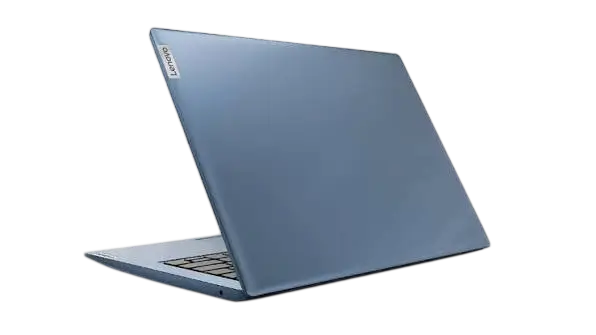
The IdeaPad 1 is a Windows laptop for everyday computing. It comes in 11-inch and 14-inch versions, and the same guide also covers the IdeaPad Slim 1 name. Four models are covered: the 11IGL05 (machine type 81VT), 14IGL05 (81VU), 11ADA05 (82GV) and 14ADA05 (82GW). The laptop has a camera, microphones, a multi-touch touch pad and built-in wireless LAN and Bluetooth. It has two USB ports, an HDMI output, a microSD card slot and a combo audio jack.
Memory is soldered on board, and storage is an M.2 SSD or eMMC drive depending on the model. The guide’s instructions assume the Windows operating system, and some features may not be available on every model.
Product Specifications
The table below covers the details owners usually look up first. Where the 11-inch and 14-inch models differ, both values are listed.
| Item | Details |
|---|---|
| Screen size | 11.6 inches (294.6 mm) or 14 inches (355.6 mm) |
| Resolution | 11-inch: 1366 × 768 (HD). 14-inch: 1366 × 768 (HD) or 1920 × 1080 (FHD) |
| Memory | On-board DDR4 SDRAM, no memory slots |
| Storage | M.2 SSD or eMMC; capacity varies by model |
| Battery (11IGL05, 14IGL05) | 32 Wh, 2 cells |
| Battery (11ADA05, 14ADA05) | 35 Wh, 2 cells |
| AC adapter | Input 100–240 V ac, 50–60 Hz. Output 20 V dc, 2.25 A. 45 W |
| 14-inch dimensions | 327.1 mm wide × 235 mm deep × 17.7–17.9 mm thick |
| 11-inch dimensions | 288 mm wide × 200 mm deep × 17.7–17.9 mm thick |
| Security | UEFI/BIOS passwords, TPM |
| Wireless | Wireless LAN, Bluetooth |
The battery rating is a typical capacity measured in a specific test environment. Capacities measured elsewhere may differ, but they are no lower than the rated capacity shown on the product label. To check your processor, type “system information” in the Windows search box and press Enter.
Operating Environment
- Maximum altitude without pressurization: 3048 m (10,000 ft).
- Operating temperature up to 2438 m (8,000 ft): 5°C to 35°C (41°F to 95°F).
- Storage temperature up to 2438 m: 5°C to 43°C (41°F to 109°F).
- Above 2438 m, the maximum operating temperature is 31.3°C (88°F).
- Operating humidity: 8% to 95%. Storage humidity: 5% to 95%.
- The battery must be at least 10°C (50°F) when you charge it.
Ports, Lights and Controls
Left side: This side has the power connector, charging light, two USB 3.2 Gen 1 Type-A ports, the HDMI connector, the microSD slot, the Novo button hole and the power light. Right side: The combo audio jack is here. The speakers are on the bottom.
The USB 3.2 Gen 1 ports are rated at 5 Gbit/s. Actual transfer speeds depend on the devices, the files and the system configuration, and they will be slower than the rated figure.
The combo audio jack takes a 3.5 mm, 4-pole plug. It does not support standalone external microphones, so use a headset with a single plug.
Charging Light
- Solid white: connected to ac power, battery at 91%–100%.
- Solid amber: connected to ac power, battery at 1%–90%.
- Off: not connected to ac power.
Power Light
- On: the computer is on.
- Off: the computer is off or in hibernation.
- Blinking: the computer is in sleep mode.
The camera light shows when the camera is in use.
Keyboard Hotkeys
Some keys carry icons and work as hotkeys, alone or with the Fn key. Together they cover volume, microphone mute, screen refresh, touch pad on/off, airplane mode, camera on/off, screen lock, display switching and brightness.
Hotkey mode is a UEFI/BIOS setting that decides whether hotkeys or F1–F12 take priority on the shared keys.
| Hotkey mode | Hotkeys | Function keys |
|---|---|---|
| Disabled | Hold Fn and press the hotkey | Press directly |
| Enabled | Press directly | Hold Fn and press the function key |
Hotkeys that don’t share a key with a function key always need Fn, whatever the mode.
To change the setting, open the UEFI/BIOS setup utility and select Configuration ➙ Hotkey Mode. Set it to Disabled or Enabled, then select Exit ➙ Exit Saving Changes.
Getting Started with Windows
Search by keyword in the Windows search box to reach the settings you need.
- Wi-Fi: Click the network icon in the notification area and choose a network. In some countries or regions, 802.11ax may be disabled by local regulations.
- Airplane mode: Turns all wireless communication on or off.
- Night light: Shows warmer screen colors and reduces blue light. Selected Lenovo computers are low blue light certified when tested with night light on and color temperature at the default of 48.
- Windows Update: Use only Windows Update for updates. Updates from other sources may carry security risks.
Lenovo Vantage or Lenovo PC Manager may be pre-installed. You can use it to view product and warranty information, run hardware scans, change hardware settings and update Windows, drivers and UEFI/BIOS. If Lenovo Vantage is missing, it can be downloaded from Microsoft Store.
Using the Novo Button Menu
The Novo Button menu opens before Windows starts. From it you can open the UEFI/BIOS setup utility, the boot device menu, or the Windows startup options screen. The startup options screen lets you start from a recovery drive, reset the computer or open advanced options (page 10).
- Turn off the computer.
- Open the screen and press the Novo button.
- Alternatively, with the computer off, press Fn and the power button together.
Power and Battery
Click the battery icon in the notification area to see the remaining percentage and change the power mode. A warning appears when the battery is low.
The battery charges fully in about two to four hours, depending on its capacity, the environment and whether you are using the computer. The recommended charging temperature is 10°C to 35°C (50°F to 95°F). The computer won’t start recharging while the battery is above 95%, which helps extend battery life (page 13).
To see the battery temperature in Lenovo Vantage, open Hardware Settings ➙ Power, then click Show Details in the Power Status section. In Lenovo PC Manager, select System hardware ➙ Battery.
By default, pressing the power button puts the computer to sleep. To change that, open Control Panel, choose Power Options, then click “choose what the power button does.”
UEFI/BIOS Setup Utility
- Turn on or restart the computer.
- When the Lenovo logo appears, press F2 repeatedly (Fn + F2 if hotkey mode is enabled).
To change the startup order, open the Boot menu and adjust Boot Priority Order. For a one-time change, press F12 (or Fn + F12) repeatedly when the Lenovo logo appears.
Passwords
| Password | Requirement | What it does |
|---|---|---|
| Administrator | None | Required to open the setup utility |
| User | Administrator password set first | Can open the setup utility, with limited settings |
| Master hard disk | None | Required to start the operating system |
| User hard disk | Master hard disk password set first | Can start the operating system |
All passwords use letters and numbers only.
To set an administrator password, go to Security ➙ Set Administrator Password, enter it twice, then select Exit ➙ Exit Saving Changes. To require a password at every startup, set Power on Password to Enabled after the administrator password exists.
Warning: A forgotten administrator password can’t be reset by Lenovo authorized service personnel. The system board has to be replaced, which needs proof of purchase and a fee. A forgotten hard disk password is worse, because the data can’t be recovered and the drive must be replaced (pages 15–16).
The master and user hard disk passwords must be set at the same time, and you can’t set them if you entered setup with the user password. Removing the master password also removes the user password.
Safety Instructions
- Heat: The base, palm rest and AC adapter can get hot during use or charging. Avoid prolonged skin contact, and don’t use the adapter to warm your body (page 25).
- Ventilation: Never block the vents. Don’t use the laptop on a bed, sofa or carpet, or inside furniture. Airflow into the computer should not exceed 35°C (95°F) (page 33).
- Liquids: Keep liquids away from the computer and the power adapter.
- Power cords: Use only the supplied cords and adapters. Don’t wrap a cord around the adapter. Stop using any adapter or cord that shows corrosion, overheating or damage (page 29).
- External devices: Don’t connect or disconnect device cables other than USB while the computer is on. After shutdown, wait at least five seconds before disconnecting devices (page 30).
- Battery: Don’t open, crush, puncture or short-circuit it. Store batteries at about 30%–50% charge, and charge them at least once a year (page 31).
- Built-in battery: Don’t remove or replace it yourself. Only a Lenovo-authorized repair facility should do it.
- Moving the computer: Turn it off, or put it in sleep or hibernation, before putting it in a carrying case.
- Stop using it and unplug it if you notice smoke, sparks, strong odors, cracking or hissing sounds, battery damage, liquid spills or physical damage. Then contact the Customer Support Center (pages 27–28).
- Headphones: Excessive volume can cause hearing loss.
- LCD: The screen is glass. If the internal fluid reaches your eyes or hands, rinse with water for at least 15 minutes (page 35).
Maintenance and Replaceable Parts
Check the outside of the computer regularly for dust, and clear dust from the vents and bezel openings. Dusty or high-traffic areas may need more frequent cleaning (page 33).
Only the power cord and ac power adapter are listed as customer replaceable units (CRUs). Replacing anything else, including the built-in battery, must be done by a Lenovo-authorized repair facility or technician (page 21).
Troubleshooting and Support
If the computer stops responding: Press and hold the power button until it turns off, then restart it.
If you spill liquid on it:
- Unplug the ac power adapter and turn off the computer immediately.
- Wait until you are sure all the liquid is dry before turning it on again.
Don’t turn the computer over to drain the liquid.
For drivers and UEFI/BIOS updates, use Lenovo Vantage, Lenovo PC Manager or the Lenovo Support website. Before calling support, note the product name, machine type, serial number, the symptoms and any error messages. The product name and serial number are usually on a label or etched on the bottom cover.
Frequently Asked Questions
Which models does this guide cover?
It covers the IdeaPad 1 11IGL05 (81VT), 14IGL05 (81VU), 11ADA05 (82GV) and 14ADA05 (82GW). It also applies to the IdeaPad Slim 1 names.
How do I open the BIOS or boot menu?
Restart the computer and press F2 repeatedly when the Lenovo logo appears to open the setup utility. Press F12 for a one-time boot device choice. If hotkey mode is enabled, add Fn. The Novo button also opens a menu with both options.
Can I upgrade the memory?
No. The memory is soldered on board and there are no memory slots. Storage capacity varies by model, and the guide doesn’t give a storage upgrade procedure.
How long does the battery take to charge?
About two to four hours. The time depends on battery capacity, temperature and whether the laptop is in use. Charging won’t restart while the battery is above 95%.
Can I use a standalone microphone with the audio jack?
No. The combo jack only supports headphones and headsets with a single 4-pole 3.5 mm plug.
Can I replace the battery myself?
No. The battery is built in and must be replaced by a Lenovo-authorized repair facility or technician.
What happens if I forget a BIOS password?
An administrator password can only be fixed by replacing the system board. A forgotten hard disk password means replacing the drive, and the data can’t be recovered. Both need proof of purchase and a fee.
How do I reset or restore Windows?
The guide points to Lenovo recovery options at support.lenovo.com/HowToCreateLenovoRecovery. It also points to Windows recovery options through pcsupport.lenovo.com under Diagnostics ➙ Operating System Diagnostics. The Novo Button menu’s startup options screen can also reset the computer or start from a recovery drive.