
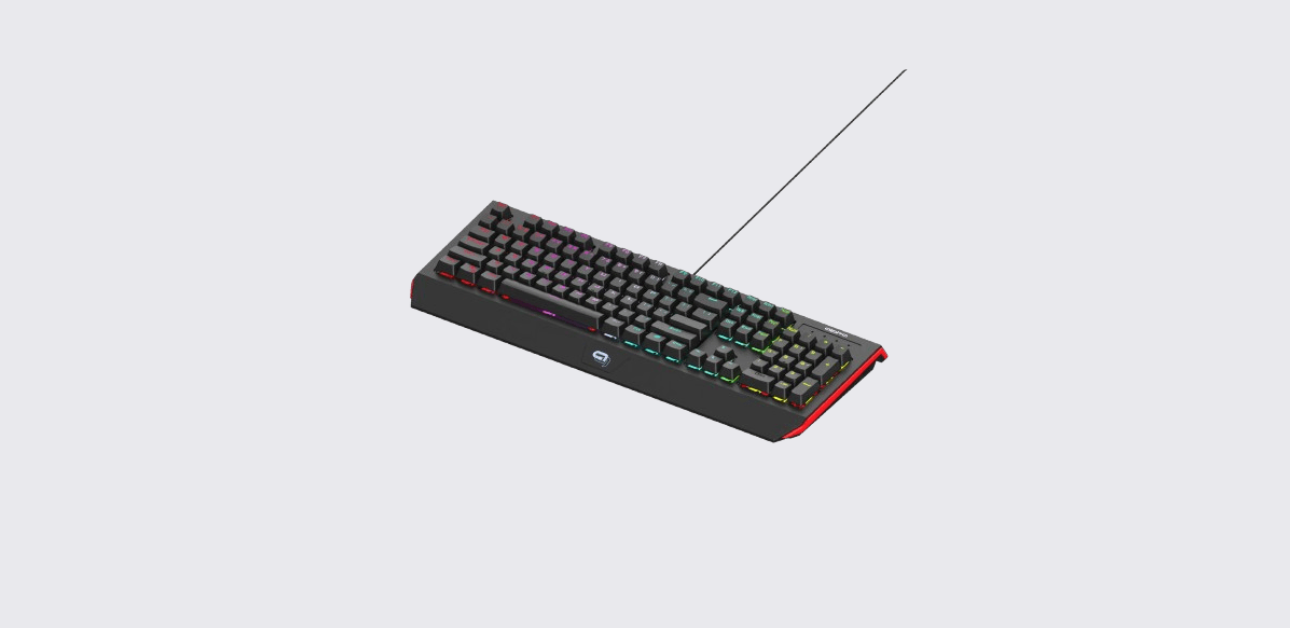
The TZUMI gaming rumble keyboard is a full-size RGB gaming keyboard built for both casual and serious users. It offers plug-and-play setup, customizable lighting, and a standard 104-key layout that feels familiar right away.
This manual explains how to set up, use, and customize the keyboard step by step. Even if someone has never used a gaming keyboard before, they can follow this guide and get started quickly.
About TZUMI Gaming Keyboard
The TZUMI keyboard (also known as Alpha Gaming RGB Keyboard) focuses on simplicity and performance. It connects through USB and starts working instantly without any complex installation.
According to the official manual, the keyboard delivers smooth typing and gaming performance while offering full RGB lighting customization.
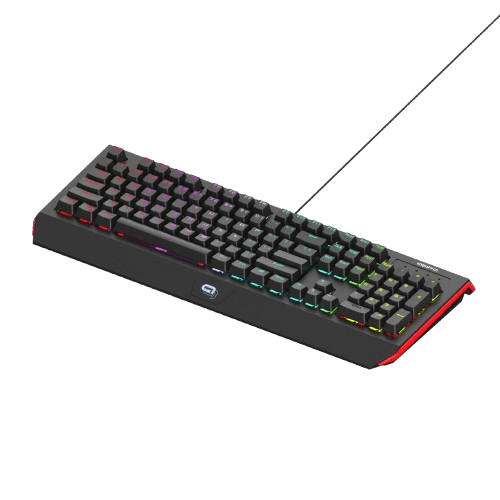
It combines essential gaming features with everyday usability. This makes it suitable for gaming, office work, and general use.
Key Features and Benefits
The keyboard includes practical features that improve both performance and user experience. It avoids unnecessary complexity while still offering customization.
Core Features
- Plug-and-play functionality
- Full RGB backlighting system
- 104-key standard US layout
- Multimedia hotkeys
- Replaceable mechanical-style keys
- Lightweight and durable design
These features make the keyboard easy to use right out of the box. Users can start typing or gaming within seconds.
Technical Specifications
The following table shows the main specifications of the TZUMI gaming keyboard:
| Feature | Details |
| Connection Type | USB-A |
| Keyboard Layout | 104 Keys (US Layout) |
| Dimensions | 19.1 x 8.4 x 1.5 inches |
| Voltage | 5V |
| Current | 150 mA |
| LED Lighting | Full RGB |
| Key Type | Replaceable mechanical-style |
These specifications show that the keyboard is designed for stable performance and long-term use.
How to Set Up the TZUMI Keyboard
Setting up the TZUMI gaming keyboard is very simple. The device does not require drivers or complicated installation.
Setup Steps
- Take the keyboard out of the box
- Plug the USB cable into a computer
- Wait a few seconds for automatic detection
The keyboard becomes ready to use instantly. According to the official guide, it supports Windows systems (Windows 7 and above).
Optional Software Setup
Users who want advanced control can download additional software from:
tzumi.com/alphagaming
This software allows deeper customization of lighting and macros.
Keyboard Layout and Parts
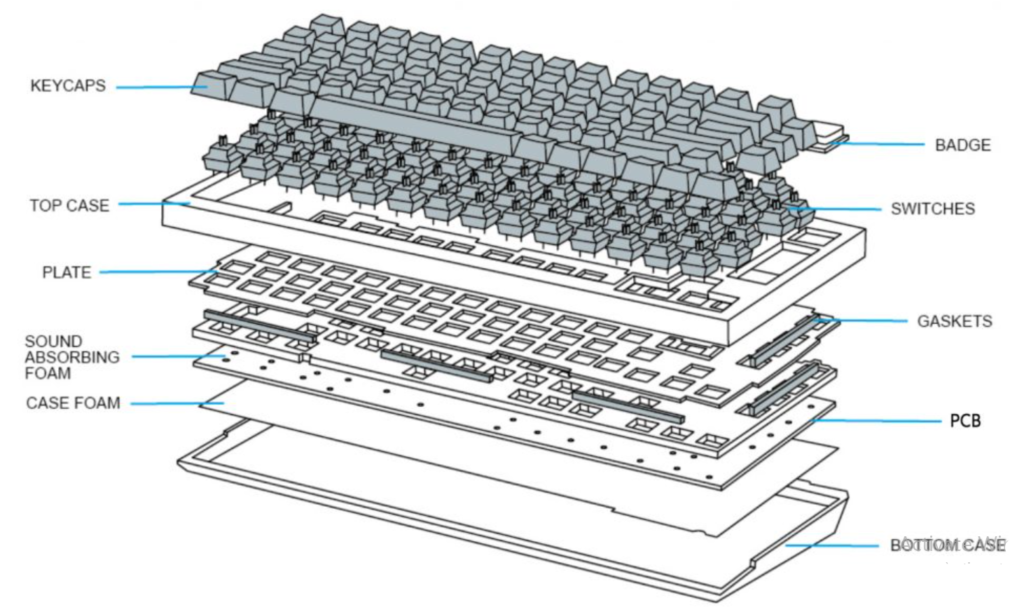
Understanding the layout helps users use all features effectively.
Main Components
- USB connection wire
- QWERTY keyboard layout
- Numeric keypad
- Multimedia hotkeys
- Function (FN) key
- Palm rest
- LED logo
- LED control buttons
The layout follows a standard design, so users do not need time to adjust.
RGB Lighting Controls and Functions
The gaming keyboard includes multiple lighting effects. Users can control these using FN key combinations.
Basic Lighting Controls
| Function | Key Combination |
| Change colors | FN + LED key |
| Adjust speed | FN + Left/Right arrow |
| Adjust brightness | FN + Up/Down arrow |
These controls allow quick adjustments during use.
Advanced Lighting Modes
The keyboard offers several lighting effects. Each mode creates a different visual style.
Users can cycle through modes using the backlight key:
- Slow fading color mode
- Line-by-line lighting
- Single color mode
- Diagonal swipe effect
- Pulse lighting
- Rainbow wave
- Random RGB pulse
- Swipe patterns
These modes give users full control over how their keyboard looks.
Gaming Mode and Key Functions
The keyboard includes features designed for gaming.
- FN + WIN → Locks or unlocks the Windows key
- FN + Delete → Activates gaming mode
These functions prevent accidental interruptions during gameplay.
How to Use the Keyboard Effectively
The TZUMI keyboard works like a standard keyboard but includes extra features.
Users can type, control media, and adjust lighting without leaving their workflow.
Tips for Better Experience
- Use FN shortcuts to switch lighting quickly
- Adjust brightness based on room lighting
- Lock the Windows key during gaming
- Keep the keyboard clean for smooth key response
These small habits improve performance and comfort.
Cleaning and Maintenance
Proper care keeps the keyboard working smoothly.
Cleaning Steps
- Unplug the keyboard
- Use a soft, dry cloth to wipe the surface
- Remove dust between keys gently
- Avoid using water or liquid cleaners
The official manual warns against using harsh chemicals or exposing the keyboard to moisture.
Safety Instructions and Precautions
The Rumble gaming keyboard is safe when used correctly. Users should follow these precautions:
- Do not expose the keyboard to water or humidity
- Do not bend or damage the USB cable
- Do not disassemble the keyboard
- Keep away from heat sources
- Keep out of reach of children
These guidelines help prevent damage and ensure safe usage.
Troubleshooting Common Issues
If the keyboard does not work properly, users can try these simple solutions.
Problem: Keyboard Not Working
Solution:
- Check the USB connection
- Try a different USB port
- Restart the computer
Problem: RGB Lights Not Working
Solution:
- Use FN + lighting key to activate effects
- Check if brightness is set to low
Problem: Keys Not Responding
Solution:
- Clean dust under keys
- Reconnect the keyboard
Most issues are minor and can be fixed quickly.
Customer Support Information
If users need help with the TZUMI gaming keyboard, they can contact support:
- Phone: 1-855-GO-TZUMI
- Email: support@tzumi.com
- Website: www.tzumi.com
Support teams can assist with troubleshooting, setup, and product questions.
Frequently Asked Questions
Does the keyboard require software to work?
No. It works instantly when plugged in. Software is only needed for advanced customization.
Can users change RGB lighting without software?
Yes. Users can control lighting using FN key combinations.
Is this keyboard compatible with Mac?
The manual mentions Windows support. It may work with Mac, but some functions may not behave the same.
What type of keys does it use?
It uses mechanical-style keys that are replaceable.
How do users activate gaming mode?
Press FN + Delete to enable gaming mode.
Summary
The TZUMI gaming keyboard delivers a strong balance between simplicity and customization. It offers plug-and-play setup, responsive keys, and flexible RGB lighting without making things complicated.
It works well for both gaming and everyday use. With basic care and proper usage, it can provide a smooth and reliable typing experience for a long time.
For deeper customization and advanced settings, users can refer to the official guide and optional software.