
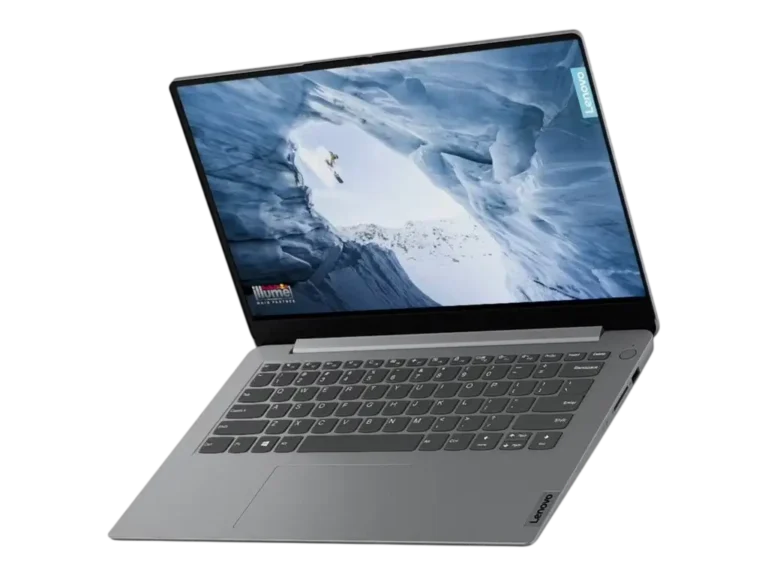
The Lenovo IdeaPad 1 is a Windows laptop sold in 14-inch and 15-inch versions with AMD and Intel processor options. This guide covers many variants under one cover, and the 14IJL7 (machine type 82LV) is one of them. The 14IJL7 uses a 45 W charger, eMMC storage, and a 42 Wh battery.
Other variants in the series differ in processor, memory type, storage, and charger rating, so check the model name on your laptop’s bottom label before comparing specs. Some features, such as the fingerprint reader and numeric keypad, appear on selected models only.
All Models Covered: IdeaPad 1 14ADA7, IdeaPad 1 14ADA7 Ua, IdeaPad 1 14ALC7, IdeaPad 1 14ALC7 1, IdeaPad 1 14ALC7 2, IdeaPad 14 ALC7, IdeaPad 1 14AMN7, IdeaPad 1 14AMN7 Ua, IdeaPad 1 14AMN7 Ub, IdeaPad 1 14AMN7 Uc, IdeaPad 1 14IAU7, IdeaPad 1 14IAU7 1, IdeaPad 1 14IAU7 2, IdeaPad 14 IAU7, IdeaPad 1 14IGL7, IdeaPad 1 14IGL7 1, IdeaPad 1 14IGL7 2, IdeaPad 1 14IJL7, IdeaPad 1 14IJL7 Ua, IdeaPad 1 15ADA7, IdeaPad 1 15ADA7 Ua, IdeaPad 1 15ALC7, IdeaPad 1 15ALC7 1, IdeaPad 1 15ALC7 2, IdeaPad 15 ALC7, IdeaPad 1 15AMN7, IdeaPad 1 15AMN7 Ua, IdeaPad 1 15AMN7 Ub, IdeaPad 1 15AMN7 Uc, IdeaPad 1 15IAU7, IdeaPad 1 15IAU7 1, IdeaPad 1 15IAU7 2, IdeaPad 15 IAU7, IdeaPad 1 15IGL7, IdeaPad 1 15IGL7 1, IdeaPad 1 15IGL7 2, IdeaPad 1 15IJL7, IdeaPad 1 15IJL7 Ua, IdeaPad 1 15IRU7, IdeaPad 1 15IRU7 1, IdeaPad 1 15IRU7 2
Ports, Lights, and Controls
Most connectors are on the left side (p. 8):
- Power connector: takes the included power cord and ac adapter.
- Charging light: solid white means connected to ac power with the battery at 91%–100%. Solid amber means connected with the battery at 1%–90%. Off means not connected.
- USB 3.2 Gen 1 Type-A: for keyboards, mice, storage, and printers.
- HDMI 1.4: for a monitor or HDTV.
- USB-C: for external storage or data devices. It cannot connect an external display.
- Combo audio jack: takes headphones or headsets with a 3.5 mm, 4-pole plug. It does not support standalone external microphones, so choose a headset with a single plug.
The right side (p. 9) has a second power light, the Novo button hole, an SD card slot (MMC cards also work), and a USB 2.0 port.
The power light on the base and right side stays on when the computer is running. It blinks in sleep mode and is off when the computer is off or hibernating (p. 7). A camera cover slider sits above the screen, and the camera light shows when the camera is in use (p. 6). On models with a fingerprint reader, it is built into the power button.
Product Specifications
| Item | 14IJL7 / 14-inch IJL7 models |
|---|---|
| Dimensions (W × D × H) | 325.3 × 216.5 × 17.9 mm (12.8 × 8.5 × 0.7 in) |
| Screen | 14 in (355.6 mm); HD 1366 × 768, FHD 1920 × 1080, or FHD IPS 1920 × 1080 |
| Memory | DDR4, 1 physical slot |
| Storage | eMMC (ADA, IGL, and IJL models) |
| Battery | 42 Wh, 3 cells |
| ac adapter | Input 100–240 V, 50–60 Hz; output 20 V dc, 2.25 A; 45 W |
| USB-C | Up to 5 V / 3 A power output; up to 5 Gbps data (USB 3.2 Gen 1) |
| HDMI | 1.4, up to 3840 × 2160 at 30 Hz, 24 bpp |
| Wireless | Wireless LAN and Bluetooth |
The 15IJL7 versions share the same internals but are larger, at 360.2 × 236 × 17.9 mm (p. 5). Real-world USB speeds will be lower than the rated figures. The guide lists 0.48 Gbit/s for USB 2.0 and 5 Gbit/s for USB 3.2 Gen 1 (p. 7). To find your processor, type “system information” in the Windows search box.
Operating Environment and Heat Caution
Operating temperature is 5°C to 35°C (41°F to 95°F) at altitudes up to 2438 m. Storage is 5°C to 43°C. Maximum altitude is 3048 m without pressurization. Operating humidity is 8% to 95% (p. 7).
Keep the laptop on a hard, flat surface while it runs, and keep the bottom from touching bare skin. Even within normal limits, the bottom can get hot enough to cause discomfort or harm after more than one minute of direct contact (p. 7).
Battery and Power Management
Click the battery icon in the Windows notification area to see the remaining percentage and change the power mode. A warning appears when the battery runs low.
Charging takes about two to four hours, depending on conditions and use. The recommended charging temperature is 10°C to 35°C (50°F to 95°F) (p. 13). To protect battery life, once the battery is full it must discharge to 94% or lower before it will recharge. After long periods of light use, full capacity may not return until you discharge to as low as 20% and recharge completely.
The default power plan is Balanced. On the 14IJL7, the display turns off after 10 minutes and the computer sleeps after 30 minutes, whether on battery or plugged in (p. 14). Wake it by pressing the power button or any key.
To change what the power button does, follow these steps:
- Type Control Panel in the Windows search box and press Enter.
- View by large or small icons and open Power Options.
- Select Choose what the power button does.
By default, pressing the power button puts the computer to sleep. Press Fn + Q to cycle through performance modes (p. 15).
Hotkeys and the Keyboard
Many keys carry icons for volume, microphone mute, touchpad on/off, airplane mode, screen brightness, camera on/off, screen lock, display switching, media controls, and keyboard backlight. Some are available only on certain models.
Hotkey mode decides whether those keys work on their own:
| Hotkey mode | Hotkeys | Function keys (F1–F12) |
|---|---|---|
| Disabled | Hold Fn, then press the key | Press directly |
| Enabled | Press directly | Hold Fn, then press the key |
Hotkeys that don’t share a key with F1–F12 always need Fn (p. 11). On models with a numeric keypad, press NumLock to turn it on or off.
Windows Settings and Lenovo Apps
To change a Windows setting, type its keyword in the search box and pick the best match. Useful ones include Wi-Fi, Airplane mode, Night light, Sign-in options, and Windows Updates. Night light reduces blue light and can help with eye strain. Use Windows Update only for updates, because updates from other sources can carry security risks (p. 8).
Depending on where you bought the laptop, it has either Lenovo Vantage or Lenovo PC Manager preinstalled. Both show system status, adjust device settings, and check for updates. If neither is installed, Lenovo Vantage is a free download from the Microsoft Store (p. 9).
Using the Novo Button Menu
The Novo button opens a menu before Windows starts. From it you can open the UEFI/BIOS setup utility, the boot device menu, or the Windows startup options screen. From the startup options you can boot from a recovery drive, reset the computer, or open advanced options (p. 9–10).
- Turn off the computer.
- Open the screen and press the Novo button (the small hole on the right side).
Alternatively, with the computer off, press Fn and the power button together.
UEFI/BIOS Setup and Passwords
To open setup, turn on or restart the computer and press F2 repeatedly when the Lenovo logo appears (Fn + F2 if hotkey mode is enabled). To change the boot device for one start only, press F12 (or Fn + F12) at the logo instead (p. 15).
To change the permanent startup order, open setup, go to Boot, and edit Boot Priority Order. To switch hotkey mode, go to Configuration ➙ Hotkey Mode. Always finish with Exit ➙ Exit Saving Changes.
Setup passwords use letters and numbers only. There are four types:
| Password | Prerequisite | What it does |
|---|---|---|
| Administrator | None | Required to open setup |
| User | Administrator password set | Can open setup, with fewer changeable settings |
| Master hard disk | None | Required to start the operating system |
| User hard disk | Master password set | Can also start the operating system |
To set an administrator password, open setup, select Security ➙ Set Administrator Password, enter the password twice, then save and exit. Enabling Power on Password under Security makes the computer ask for the administrator or user password at every start (p. 17).
Warning: If you forget the administrator password, service staff cannot reset it. The system board must be replaced, with proof of purchase and a fee for parts and service. A forgotten hard disk password is worse, because the drive must be replaced and your data cannot be recovered (p. 16–17). Set the master and user hard disk passwords together, and note that removing the master password also removes the user one.
Care, Spills, and Replaceable Parts
If liquid spills on the laptop, unplug the ac adapter and turn the computer off right away. Wait until it is completely dry before turning it on again. Do not turn the laptop upside down to drain it, as keyboard drainage holes (if present) let liquid out through the bottom (p. 24).
The power cord and ac adapter are the only customer-replaceable parts listed. The built-in rechargeable battery and everything else must be replaced by a Lenovo-authorized repair facility or technician (p. 26).
Getting Help
Check the Lenovo Support site (support.lenovo.com) for drivers, BIOS updates, documentation, and warranty details. Lenovo Vantage and PC Manager can also update drivers and firmware, run hardware diagnostics, and show warranty status. Before calling support, note your product name, machine type, serial number, and any error messages (p. 27). The product name and serial number are usually on a label or etched on the bottom of the computer.
Frequently Asked Questions
What do the charging light colors mean?
Solid white means the laptop is on ac power with the battery between 91% and 100%. Solid amber means it is on ac power with the battery between 1% and 90%. If the light is off, the laptop is not connected to ac power.
Can I connect an external monitor to the USB-C port?
No. The USB-C connector is for external storage and data devices and cannot drive an external display. Use the HDMI 1.4 port instead, which supports up to 3840 × 2160 at 30 Hz.
How do I open the BIOS or choose a boot device?
Restart the laptop and press F2 repeatedly at the Lenovo logo to open the setup utility. Press F12 to pick a one-time boot device. With hotkey mode enabled, use Fn + F2 or Fn + F12. The Novo button menu offers the same options with the computer off.
What should I do if the laptop stops responding?
Hold the power button until the computer turns off, then restart it.
Why won’t my battery recharge right after it reaches full?
By design, a fully charged battery must discharge to 94% or lower before it recharges. This helps protect long-term battery life.
Does the 14IJL7 have a touchscreen?
The guide lists touch-capable screens only for some 15-inch ALC, AMN, IAU, and IRU models. The 14IJL7 screen options are HD, FHD, and FHD IPS, with no touch option listed.
Can I use a standalone microphone with the audio jack?
No. The combo jack supports 3.5 mm, 4-pole headphones and headsets, but not standalone external microphones.
Where do I get the latest drivers and BIOS updates?
Use Lenovo Vantage or Lenovo PC Manager, or download them from the Lenovo Support website.