
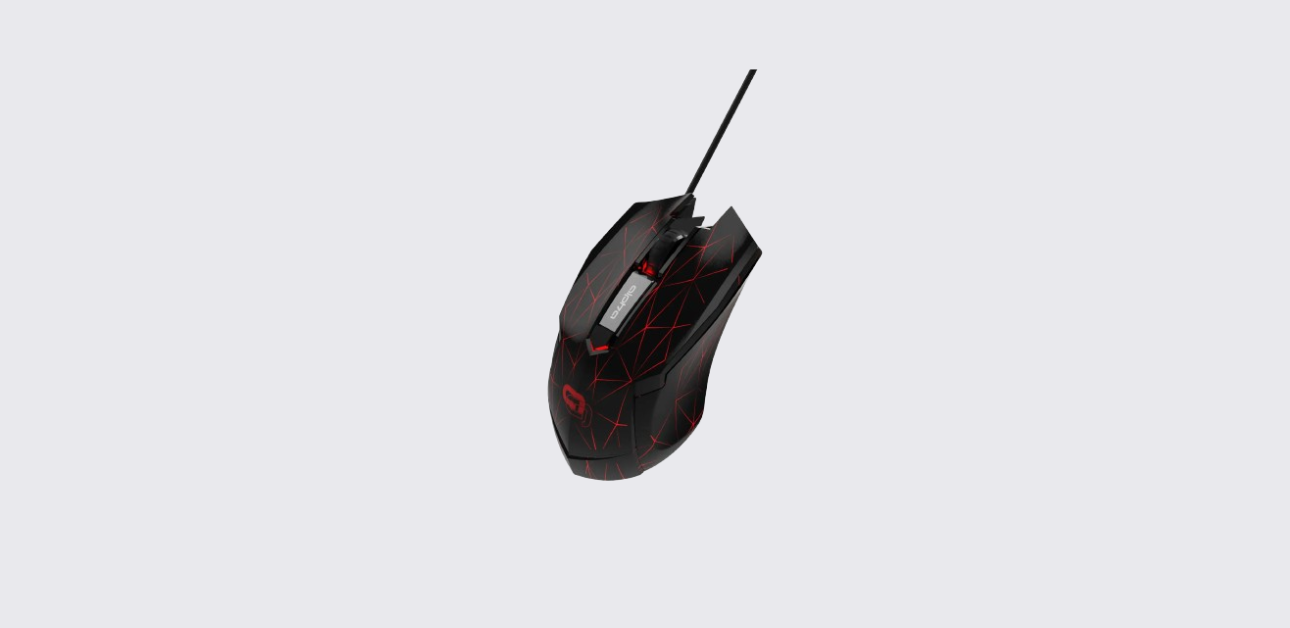
The TZUMI gaming warrior mouse is a wired optical gaming mouse designed for smooth control, adjustable sensitivity, and customizable RGB lighting. It offers plug-and-play functionality, so users can start using it right away without installing any software.
This manual explains everything clearly—from setup and button functions to DPI settings and LED customization. Whether someone uses the mouse for gaming or everyday tasks, this guide helps them get the best performance.
About TZUMI Gaming Mouse
The TZUMI gaming mouse focuses on simplicity, speed, and comfort. It connects through USB and works instantly on most computers.
According to the official manual, the mouse combines ergonomic design, customizable DPI settings, and LED lighting to improve both precision and user experience.
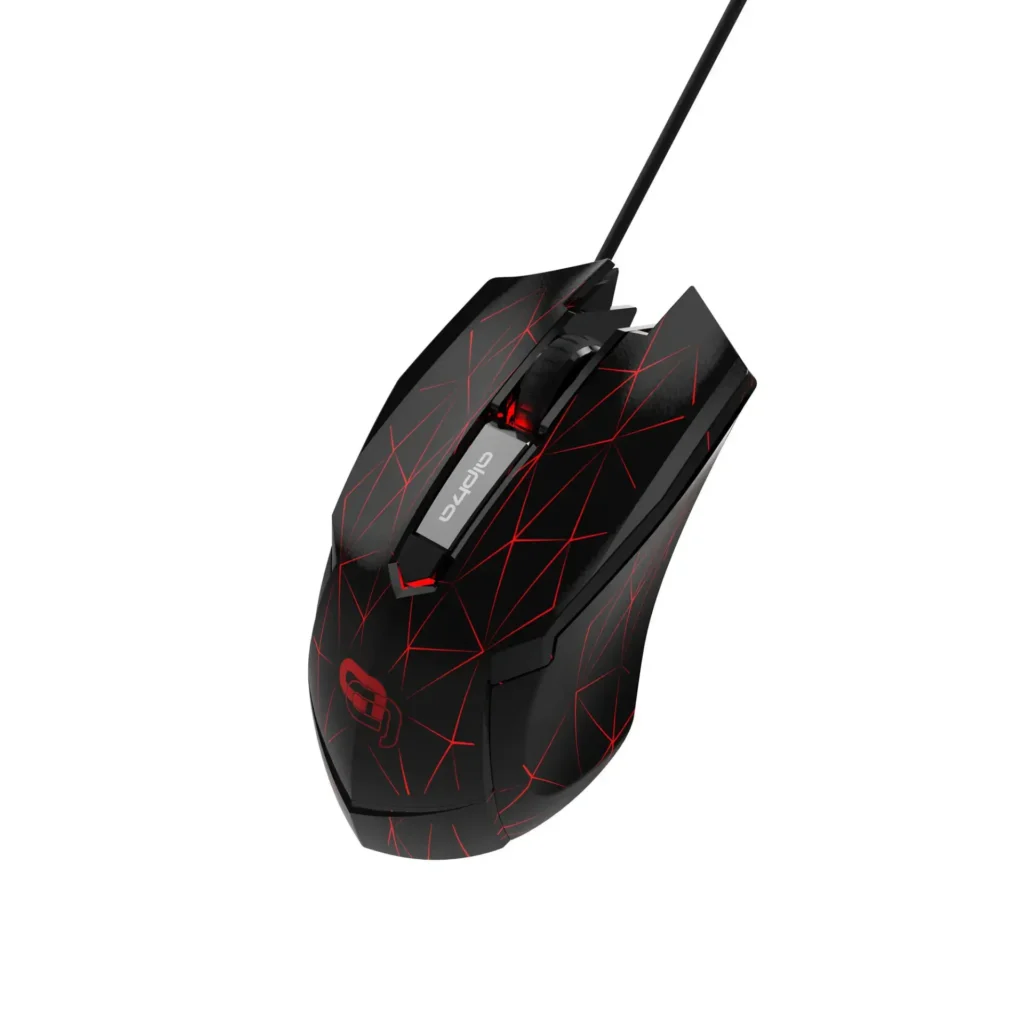
It works well for:
- Gaming sessions that require fast response
- Office tasks that need accuracy
- Daily browsing and general use
The design supports long hours of use without discomfort.
Key Features and Benefits
The mouse includes several features that make it practical and efficient for different users.
Core Features
- Plug-and-play USB connection
- Adjustable DPI sensitivity levels
- RGB LED lighting modes
- Ergonomic design with palm support
- Forward and backward navigation buttons
- Smooth scrolling and precise clicking
These features allow users to customize both performance and appearance without needing extra tools.
Product Overview and Button Layout
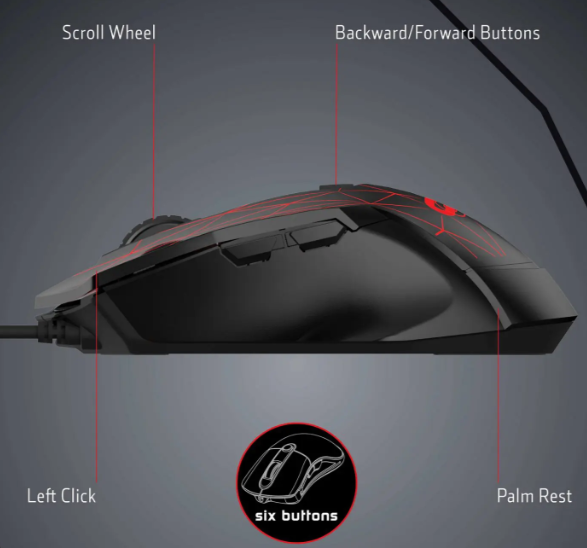
Understanding the layout of the Warrior gaming mouse helps users take full advantage of its features.
Main Components
- Left-click button
- Right-click button
- Scroll wheel
- DPI button
- Forward button
- Backward button
- USB cable
- Mouse body with palm rest
The diagram in the official manual clearly shows the placement of each part and how users interact with them.
Each button serves a specific function, making navigation and control easier.
How to Set Up the Mouse
Setting up the TZUMI gaming mouse takes only a few seconds.
Setup Steps
- Remove the mouse from packaging
- Plug the USB cable into a computer
- Wait for the system to detect the device
The mouse starts working immediately. According to the official manual, no additional software installation is required.
Compatibility
The mouse supports:
- Windows XP, Windows 7, Windows 8/8.1, Windows 10
- macOS (OS X 10.x)
This makes it compatible with most modern systems.
DPI Settings and Sensitivity Control
DPI (dots per inch) controls how fast the cursor moves on the screen. Higher DPI means faster movement, while lower DPI offers more precision.
Available DPI Levels
| DPI Level | LED Indicator Color |
| 1000 DPI | Green |
| 1600 DPI | Purple (Default) |
| 3200 DPI | Blue |
| 6400 DPI | Red |
Users can switch DPI levels using the DPI button on the mouse.
When to Use Each DPI
- 1000 DPI: Best for precise tasks like design or editing
- 1600 DPI: Balanced setting for everyday use
- 3200 DPI: Good for fast-paced work or casual gaming
- 6400 DPI: Ideal for high-speed gaming
These options allow users to adjust performance based on their needs.
LED Backlight Modes and Customization
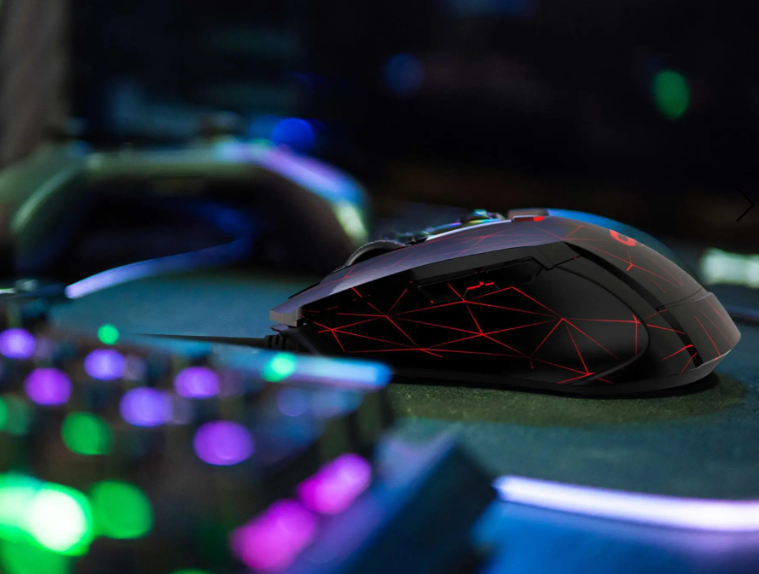
The TZUMI mouse includes multiple RGB lighting modes to enhance the look of the setup.
Available Lighting Modes
- Slow pulsing
- Multicolor fade (default)
- Neon effect
- Quick pulse
- Waltz mode
- 4-color fade cycle
- LED off
How to Change Lighting Mode
To switch LED modes:
- Press the left-click button + DPI button at the same time
This simple combination allows quick customization without software.
How to Use the Mouse Effectively
The mouse is designed to provide smooth and responsive control.
Tips for Better Performance
- Adjust DPI based on activity
- Use lower DPI for precision tasks
- Use higher DPI for fast movement in games
- Keep the mouse on a clean, flat surface
- Use side buttons for faster navigation
These small adjustments can improve comfort and efficiency.
Cleaning and Maintenance
Proper care helps extend the life of the gaming warrior mouse.
Cleaning Steps
- Unplug the mouse
- Use a soft, dry cloth to clean the surface
- Remove dust from buttons and scroll wheel
- Avoid using water or liquid cleaners
The official manual advises against using harsh chemicals or exposing the mouse to moisture.
Safety Guidelines
Users should follow these safety instructions to avoid damage.
- Do not disassemble or modify the mouse
- Keep away from water and humidity
- Avoid extreme heat or cold
- Do not damage or twist the USB cable
These precautions help maintain safe and long-term use.
Technical Specifications
| Feature | Details |
| Connection | USB (Wired) |
| Polling Rate | 125 Hz |
| Voltage | 5V |
| Current | <150 mA |
| Compatibility | Windows & macOS |
These specifications show that the mouse is efficient and suitable for everyday use.
Troubleshooting Common Issues
If the mouse does not work as expected, users can try these solutions.
Problem: Mouse Not Working
Solution:
- Check USB connection
- Try a different USB port
- Restart the computer
Problem: Cursor Moving Too Fast or Slow
Solution:
- Adjust DPI using the DPI button
Problem: LED Lights Not Changing
Solution:
- Press left-click + DPI button together
- Ensure the mouse is properly connected
Most issues are simple and can be resolved quickly.
Customer Support Information
For help with the TZUMI gaming mouse, users can contact:
- Phone: 1-855-GO-TZUMI
- Email: support@tzumi.com
- Website: www.tzumi.com
Support is available for troubleshooting and product-related questions.
Frequently Asked Questions
What is DPI and why does it matter?
DPI controls cursor speed. Higher DPI moves the cursor faster, while lower DPI gives better precision.
Does the mouse need software to work?
No. It works instantly when plugged in.
How do users change RGB lighting?
Press the left-click button and DPI button together to switch modes.
Can the mouse work on a laptop?
Yes. It works with any device that has a USB port.
What is the default DPI setting?
The default DPI is 1600, indicated by a purple LED.
Summary
The TZUMI gaming mouse offers a strong mix of performance, comfort, and simplicity. It works right out of the box and provides useful features like adjustable DPI and RGB lighting.
With proper use and care, it delivers reliable performance for both gaming and everyday tasks.