
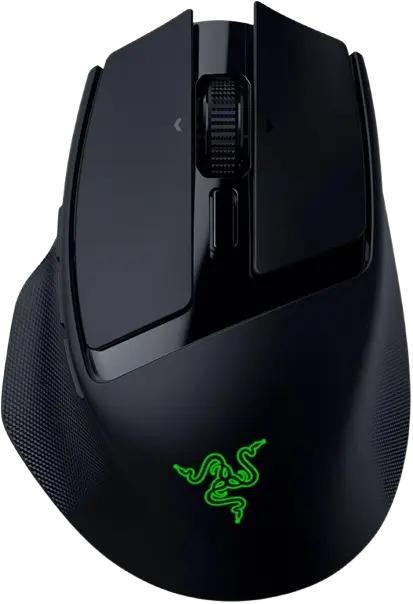
Razer Basilisk Mobile
The Razer Basilisk Mobile is a wireless gaming mouse that connects three ways: Razer HyperSpeed Wireless (2.4 GHz) through the included USB dongle, Bluetooth, or wired with the included USB Type A to USB Type C cable. It has a 4-Way Razer HyperScroll Tilt Wheel with a dedicated button for switching between Free-Spinning and Tactile Cycling scroll modes. It also has two side buttons (Mouse button 4 and Mouse button 5) and a dedicated AI Prompt Master button.
A Razer Focus X 18K Optical Sensor handles tracking. The AI Prompt Master button and the customization options for DPI, polling rate, button assignments and profiles require the Razer Synapse app.
What Is in the Box and What You Need
Package contents
- Razer Basilisk Mobile
- 2.4GHz HyperSpeed Wireless dongle
- USB Type A to USB Type C cable
- Important Product Information Guide
Product requirements
- A USB Type A port or Bluetooth connectivity
Razer Synapse requirements
- Windows® 10 64-bit (or higher) or macOS 15 with Apple Silicon “M” series (or higher)
- An internet connection for software installation
Mouse Parts and Controls
The labels below match the callouts in the product diagram.
| Label | Part |
| A | Left mouse button |
| B | Right mouse button |
| C | 4-Way Razer™ HyperScroll Tilt Wheel |
| D | Scroll mode button (Free-Spinning mode and Tactile Cycling mode) |
| E | Triple-headed snake logo/status indicator |
| F | Mouse button 5 |
| G | Mouse button 4 |
| H | AI Prompt Master button (requires Razer Synapse) |
| I | USB Type C port |
| J | PTFE mouse feet |
| K | Slider switch: Bluetooth mode, Power off mode, Razer™ HyperSpeed Wireless (2.4 GHz) mode |
| L | Razer™ Focus X 18K Optical Sensor |
| M | USB dongle compartment |
Slider switch positions
On the underside, the slider switch is labeled BT (Bluetooth), OFF (power off) and 2.4 (HyperSpeed Wireless). In the diagrams, moving the slider up selects Bluetooth mode and moving it down selects HyperSpeed 2.4 GHz mode. The OFF position sits to the side of the slider’s travel.
Charging the Mouse and Reading the Battery Indicator
Charging
Connect the Type C end of the provided cable to the mouse’s USB Type C port and the Type A end to a USB Type A port on your computer. For best results, connect the mouse directly to your computer’s USB port using the provided cable.
Battery notification
The triple-headed snake logo (E) shows the battery level:
| Battery level | Charging status indicator |
| Full | Static Green |
| High | Breathing Green |
| Mid | Breathing Yellow |
| Low | Breathing Red |
| Critical | Blinking Red |
Connecting the Mouse to Your Device
Wired mode
- Set the slider switch on the underside of the mouse to the Power off position, as shown in the diagram.
- Connect the Type C end of the provided cable to the mouse’s USB Type C port and the Type A end to your computer’s USB Type A port.
Razer HyperSpeed Wireless mode
- Remove the USB dongle from the dongle compartment on the underside of the mouse.
- Plug the dongle into a USB Type A port on your computer.
- Move the slider switch down to the 2.4 (HyperSpeed Wireless) position.
- Watch the logo indicator. Blinking White means the mouse is connecting. Static White for 3 seconds means it is connected.
Bluetooth mode
- Move the slider switch up to the BT (Bluetooth) position.
- The logo indicator shows Blinking Blue while the mouse is pairing.
- On your computer, open Settings, go to Bluetooth, and select BSK MOBILE from the device list.
- A Static Blue logo indicator means the mouse is paired.
Reactivating Bluetooth pairing mode
To pair the mouse with a new device, reactivate pairing:
- Move the slider switch up to the BT (Bluetooth) position.
- Press and hold Mouse button 5, the middle mouse button and the AI Prompt Master button together for 3 seconds.
- The logo indicator shows Blinking Blue while the mouse is pairing.
- On the new device, open Settings, go to Bluetooth, and select BSK MOBILE.
- A Static Blue logo indicator confirms the mouse is paired.
Everyday Use
Switching scroll modes
Press the scroll mode button (D), located below the scroll wheel, to switch between Tactile Cycling and Free-Spinning scroll modes. Each press toggles to the other mode.
Invoking the AI Prompt Master
Press the AI Prompt Master button on the left side of the mouse (H). This button requires Razer Synapse to function. Install Razer Synapse when prompted, or download the installer at razer.com/synapse.
Configuring the Mouse in Razer Synapse
Use Razer Synapse to customize the mouse’s DPI, polling rate, button configurations, and to create profiles for different tasks. Razer Synapse needs an internet connection to install, update, access and save cloud-based features. Registering for a Razer ID account is recommended but optional. The guide covers the new Razer Synapse app and may only partly cover the features available for your device. Features are subject to change with the software version, the connected devices and supported add-ons.
The Basilisk Mobile tab
This is the main tab for the mouse. From it you can change button assignments, stored profiles, DPI sensitivity, polling rate and lighting. Changes made here are saved automatically to your local system and cloud storage. The Profiles dropdown lets you switch between your saved profiles quickly.
Customize: button assignments
The Customize subtab changes the mouse’s button assignments. Select an assignment, or open the Remap Menu, and choose one of these functions:
| Function | What it does |
| Default | Returns the selected button to its original setting. |
| AI Launcher | Opens an overlay for issuing AI queries. You can start it on either the AI Prompt Master tab or the AI Chat tab. |
| Keyboard function | Turns the button into a keyboard function. Turbo mode repeats the function while the button is held down. |
| Mouse Function | Substitutes another mouse function: Left Click, Right Click, Scroll Click, Double Click, Scroll Up, Scroll Down, Mouse Button 4 (Backward in most browsers), Mouse Button 5 (Forward in most browsers), Scroll Left or Scroll Right. Turbo mode is available for some of these. |
| Sensitivity | Changes DPI with a button: Sensitivity Clutch, Sensitivity Stage Up, Sensitivity Stage Down, On-The-Fly Sensitivity, Cycle Up Sensitivity Stages, Cycle Down Sensitivity Stages. |
| Macro | Runs a prerecorded sequence of keystrokes and button presses. Visible only when the Macro module is installed. |
| Inter-device | Changes the function of other Razer Synapse-enabled devices, such as using a Razer gaming keyboard to change the mouse’s sensitivity stage. |
| Switch Profile | Loads a new set of button assignments. An on-screen notification appears when you switch. |
| Switch Chroma Effect | Switches between Chroma Effect Profiles in Chroma Studio. Visible only when the Chroma Studio module is installed. |
| Razer Hypershift | Activates Hypershift mode (a secondary set of button assignments) while the button is held down. |
| Launch | Opens an app or a website with the assigned button. |
| Multimedia | Volume Down, Volume Up, Mute Volume, Mic Volume Up, Mic Volume Down, Mute Mic, Mute All, Play / Pause, Previous Track, Next Track. |
| Windows Shortcuts | Assigns a Windows operating system shortcut command. |
| Text Function | Types prewritten text when the button is pressed, with full Unicode support. |
| Disable | Makes the assigned button unusable. |
Hypershift mode
Hypershift mode is a secondary set of button assignments that activates while the Hypershift key is held down. By default, the Hypershift key is the fn key of a Razer Synapse-supported keyboard. You can also set any mouse button as the Hypershift key.
Pairing an additional HyperSpeed device to the dongle
The mouse’s wireless dongle can support a keyboard and a mouse at the same time, so you do not need a separate dongle for each peripheral. The mouse must be connected in HyperSpeed (2.4 GHz) wireless mode to use this feature, and each peripheral can connect to only one dongle at a time.
Performance: sensitivity, polling rate and power saving
The Performance subtab adjusts sensitivity, polling rate and wireless power saving. A higher DPI makes the cursor travel farther for the same mouse movement. You can create up to 5 sensitivity stages and cycle through them with the DPI cycle or DPI Stage Up/Down buttons. You can toggle each stage or enable the Enable X-Y function for each one. A higher polling rate means the computer receives mouse status updates more often, which reduces input latency. A shortcut in this subtab opens the Windows Mouse Properties.
Lighting
The Lighting subtab lets you turn lighting off with the Brightness toggle or adjust luminance with the slider. Switch Off Lighting is a power-saving tool that can disable lighting when your system display turns off, or power the device down after it has been idle for a set time. Smart Dimming saves battery life in Wireless Mode. Indicator LEDs are not customizable.
| Quick effect | Description | How to set up |
| Audio meter | Lights up according to the audio level, with a default spectrum of colors | Select a Color Boost level |
| Breathing | Fades in and out of the selected color(s) | Select up to 2 colors or randomize colors |
| Fire | Warm colors that mimic the motion of flames | No further customization required |
| Reactive | Lights up when you click any mouse button | Select a color and a duration |
| Spectrum cycling | Cycles between 16.8 million colors indefinitely | No further customization required |
| Starlight | Each LED has a chance of fading in and out at a random time and duration | Select up to 2 colors or randomize colors, and select a duration |
| Static | Stays lit in the selected color | Select a color |
| Wave | Scrolls in the selected direction | Select a wave direction |
If you have other Razer Chroma-enabled devices, the Chroma Sync button synchronizes their quick effects with the mouse. Advanced Effects lets you choose a Chroma Effect Profile, and the Launch Chroma Studio button starts creating your own. Some lighting effects may not be available for the mouse, and only other Razer devices that support the selected effect will synchronize.
Power
The Power subtab manages the mouse’s energy use on battery and lets you set it to enter sleep mode after it has been idle for a certain amount of time.
Linked Games
The Linked Games tab links apps to your peripherals. Select an app from the list, then select a device and its profile. The mouse then switches to that profile automatically whenever you launch the app. To add an app that is not listed, use the Add button (+) to search manually or the Scan button to search automatically. You can also drag and drop an executable file onto the Devices subtab.
Macros and Exchange
A macro is a recorded set of keystrokes, button presses and cursor movements that you can bind to a button. In the My Macros subtab, click the Record button to start recording. Before recording you can set a Start Delay of 1 to 5 seconds, a Shortcut Key to start recording even when Synapse is in the background, Delay Settings, and Mouse Movement Tracking. Click the Stop button or press the Shortcut key to end the recording, then edit the commands in the list. The Key Binds subtab shows the shortcut keys for the selected macro. The Exchange tab lets you browse and download macros submitted through the Razer Workshop and other contributors.
Synapse settings
The Settings tab includes options for Auto Launch, on-screen Notifications in full-screen apps, Recommendations on the Dashboard, a Reset button that reactivates the tutorials, a tool that transfers Profiles, Macros and Chroma Effects from Synapse 3 to the new Synapse, a choice of which app controls your device’s lighting effects, and the display language. The Feedback tab lets you send comments, suggestions and problem reports.
Safety, Comfort and Maintenance
Safety guidelines
- If you have trouble operating the device and troubleshooting does not work, unplug the device and contact the Razer hotline or go to support.razer.com.
- Do not take apart the device (doing so will void your warranty) and do not attempt to operate it under abnormal current loads.
- Keep the device away from liquid, humidity or moisture.
- Operate the device only within the temperature range of 0°C (32°F) to 40°C (104°F). If the temperature exceeds this range, unplug and/or switch off the device to let the temperature stabilize to an optimal level.
- Avoid looking directly at the tracking beam of your mouse or pointing the beam in anyone else’s eye. The tracking beam is NOT visible to the naked human eye and is set on an Always-On mode.
Comfort
- Position your keyboard and monitor directly in front of you with your mouse next to it. Keep your elbows at your sides, not too far away, with the keyboard within easy reach.
- Adjust the height of your chair and table so the keyboard and mouse are at or below elbow height.
- Keep your feet well supported, your posture straight and your shoulders relaxed.
- During gameplay, relax your wrist and keep it straight. If you repeat the same tasks with your hands, avoid bending, extending or twisting them for long periods.
- Do not rest your wrists on hard surfaces for long periods. Use a wrist rest to support your wrist while gaming.
- Customize the keys on your keyboard to suit your gaming style and minimize repetitive or awkward motions.
- Do not sit in the same position all day. Get up, step away from your desk and stretch your arms, shoulders, neck and legs.
If you experience any physical discomfort while using the mouse, such as pain, numbness or tingling in your hands, wrists, elbows, shoulders, neck or back, consult a qualified medical doctor immediately.
Cleaning and use
The mouse requires minimum maintenance. Once a month, unplug the device from the computer and clean it with a soft cloth or cotton swab to prevent dirt buildup. Do not use soap or harsh cleaning agents. Some surfaces cause undue wear on the feet, requiring constant care and eventual replacement. Razer recommends a premium Razer mouse mat, and notes that the sensor is tuned and tested to track best on Razer mouse mats.
Registration, Warranty and Support
The serial number is on the underside of the mouse, next to the USB dongle compartment area shown in the guide’s diagram. Register the product at razerid.razer.com/warranty. The product carries a 2-year warranty badge, and the current Limited Product Warranty terms are at razer.com/warranty. For support, go to support.razer.com.
Frequently Asked Questions
How do I charge the Razer Basilisk Mobile?
Plug the Type C end of the included USB Type A to USB Type C cable into the mouse’s USB Type C port and the Type A end into a USB Type A port on your computer. The guide recommends connecting directly to your computer’s USB port with the provided cable for best results. The logo on the mouse shows charge status, with Static Green meaning full.
What do the logo light colors mean for battery level?
The triple-headed snake logo shows Full as Static Green, High as Breathing Green, Mid as Breathing Yellow, Low as Breathing Red and Critical as Blinking Red.
How do I connect the mouse using the HyperSpeed 2.4 GHz dongle?
Take the dongle out of the compartment on the underside of the mouse and plug it into a USB Type A port on your computer. Then move the slider switch down to the 2.4 position. The logo blinks white while connecting and turns static white for 3 seconds once connected.
Where is the USB dongle stored?
It sits in the USB dongle compartment (label M) on the underside of the mouse, next to the Razer Focus X 18K Optical Sensor. Remove it before using HyperSpeed Wireless mode.
How do I pair the mouse over Bluetooth?
Move the slider switch up to BT. The logo blinks blue while pairing. On your computer, go to Settings, then Bluetooth, and choose BSK MOBILE. When the logo turns static blue, the mouse is paired.
How do I pair the mouse with a different Bluetooth device?
With the slider in the BT position, press and hold Mouse button 5, the middle mouse button and the AI Prompt Master button together for 3 seconds. The logo blinks blue to show pairing mode is active again. Then select BSK MOBILE in the new device’s Bluetooth settings. A static blue logo confirms the pairing.
How do I switch between Free-Spinning and Tactile Cycling scroll?
Press the scroll mode button just below the scroll wheel. Each press switches the wheel between Tactile Cycling and Free-Spinning.
Why doesn’t the AI Prompt Master button do anything?
That button needs Razer Synapse to work. Install Synapse when prompted, or download the installer at razer.com/synapse. Synapse needs an internet connection for installation and runs on Windows 10 64-bit (or higher) or macOS 15 with Apple Silicon “M” series (or higher). Once Synapse is installed, you can also assign the AI Launcher function to a button.
Can I use the mouse while it is plugged in?
Yes. Wired mode uses the included cable between the mouse’s USB Type C port and a USB Type A port on your computer. Set the slider switch to the Power off position first, as shown in the guide’s diagram.
Can one dongle connect both my mouse and my keyboard?
Yes, if the second device is HyperSpeed-compatible. The mouse’s dongle can support a keyboard and a mouse at the same time. The mouse must be in HyperSpeed (2.4 GHz) wireless mode to set this up, and each peripheral can connect to only one dongle at a time.
How do I change DPI, polling rate or button functions?
Use Razer Synapse. In the Basilisk Mobile tab, the Customize subtab handles button assignments and the Performance subtab handles sensitivity and polling rate. You can create up to 5 sensitivity stages and cycle through them with the DPI buttons. Changes save automatically to your local system and cloud storage.
How do I clean the mouse?
Once a month, unplug the mouse from the computer and wipe it with a soft cloth or cotton swab to prevent dirt buildup. Do not use soap or harsh cleaning agents. Keep the mouse away from liquid, humidity and moisture.
What temperature range is safe for the mouse?
Operate it only between 0°C (32°F) and 40°C (104°F). If the temperature goes outside this range, unplug and/or switch off the device so the temperature can stabilize.