
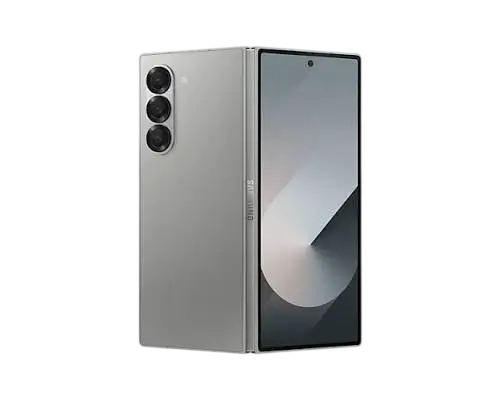
The Samsung Galaxy Z Fold6, Z Fold5 and Z Fold4 are foldable smartphones that pair a cover screen for quick one-handed use with a larger main screen that opens up like a book. This single guide covers all three generations (SM-F956B, SM-F946B and SM-F936B, plus their dual-SIM variants), so some descriptions apply to only one or two models, and the text marks those differences. It also covers foldable-specific care, charging, SIM and eSIM setup, S Pen use, safety notices, and troubleshooting.
Product Specifications
The guide has no full specification sheet, so dimensions, weight, and storage options are not covered here. These are the details it does state.
| Item | Detail |
| Covered models | Galaxy Z Fold6 (SM-F956B), Galaxy Z Fold5 (SM-F946B), Galaxy Z Fold4 (SM-F936B) |
| Displays | Cover screen (folded) and main screen (unfolded) |
| Water resistance | Fold6: IP48. Fold5 and Fold4: IPX8 (p. 170) |
| Dust resistance | Fold5 and Fold4 are not dust-resistant (p. 13) |
| SIM | Nano-SIM and eSIM; dual-SIM models support two active lines |
| Charging | USB Type-C wired charging; built-in wireless charging coil |
| Biometrics | Fingerprint sensor in the Side button |
| Recommended operating temperature | 0 °C to 35 °C (p. 173) |
| Bluetooth range | Up to 10 m (p. 194) |
| S Pen | Sold separately; main screen only |
What’s in the Box
Package contents are listed in the separate quick start guide, and they vary by region and carrier. A charger is not included for environmental reasons in some packages, though one may ship in certain regions. The Fold6 and Fold5 cable supports up to 3A charging. The S Pen is not included (p. 169).
Parts and Controls
The Side button has several jobs:
- Power on: press and hold while the device is off.
- Lock or wake the screen: press once.
- Shortcut: press twice, or press and hold, to open the app or feature you assigned under Settings → Advanced features → Side button.
Other key combinations:
- Screenshot: Side button + Volume Down, pressed together.
- Power menu: press and hold the same two buttons.
- Force restart: hold both for more than 7 seconds.
On the Fold6 and Fold5, keep the air vent holes uncovered, since film or stickers can cause noise during calls and media playback (p. 14).
Folding, Handling, and Magnet Precautions
The guide spends a lot of space on screen care, and these points matter most (pp. 12–14):
- Do not fold the device toward the back. That will damage it.
- Fold the device before putting it in a bag or storing it.
- Do not unfold it by pushing the screens apart with a finger or an object.
- Do not press the main screen or under-display camera lens with a pen, fingernail, or other hard or sharp object.
- Do not apply heavy pressure along the fold.
- Keep the factory protector film on the main screen. Removing it can damage the screen, and so can adding unapproved films or stickers.
- A crease in the middle of the main screen is normal.
The device contains magnets. Keep it away from credit cards, access cards, and other magnet-sensitive items. For implanted medical devices, keep more than 15 cm of distance, and do not carry the phone in a pocket near a heart implant. Stop using it and speak with your physician if you suspect interference.
Charging the Battery
Wired Charging
- Connect the USB cable to a USB power adapter.
- Plug the cable into the multipurpose jack (USB Type-C).
- Disconnect the charger when the battery is full.
Make sure the multipurpose jack is completely dry first. Charging a wet jack can damage the device.
Wireless Charging
Fold the device first. Then place the center of its back on the center of the wireless charger. A charger sold separately is required, and a Samsung-approved one is recommended. Do not leave a credit card or RFID card between the device and its cover, and do not place metal objects or magnets between the phone and charger. Some covers or accessories can interrupt charging, so remove them if charging is unreliable.
Wireless Power Sharing
You can charge another device from the phone’s battery. Turn it on under Settings → Battery → Wireless power sharing, fold the phone, and place the other device back to back at the center. You can set a battery limit so sharing stops at a level you choose.
Inserting a SIM Card or eSIM
- On the Fold6 or Fold5, fold the device and turn it so the rear camera faces up.
- Insert the ejection pin into the hole on the tray and pull the tray out gently.
- Place a nano-SIM in the tray. On the Fold6 and Fold5, the gold contacts face down. On the Fold4, they face up.
- Slide the tray back in fully.
Only nano-SIM cards fit. Keep the ejection pin perpendicular to the hole and make sure the tray is dry before reinserting it.
To add an eSIM, go to Settings → Connections → SIM manager → Add eSIM, then follow the prompts or scan your carrier’s QR code. eSIM availability depends on region, carrier, and model.
Using the Cover Screen, Main Screen, and Flex Mode
Some apps automatically adapt their layout when you open the device. To control what happens when you fold it, go to Settings → Display → Continue apps on cover screen. Choose Always, Swipe up to continue app, or Never.
Flex mode lets you stand the partly folded device on a flat surface. In the Camera app, the shooting controls move lower. Turn on Flex mode panel under Settings → Advanced features to get app controls and a touchpad on the lower half in supported apps.
Using the S Pen
An S Pen must be bought separately, and it must be the model designed for the Galaxy Fold. Other S Pens or stylus pens can damage the screen. S Pen features work only on the main screen. Hover over the screen and tap the Air command icon to reach tools such as Create note, Screen write, Translate, and Magnify (pp. 117–118). Do not press hard on the screen.
Water Resistance and Care
The Fold6 is rated IP48, and the Fold5 and Fold4 are rated IPX8. The tests used fresh water at 1.5 m for 30 minutes (p. 170). To keep that protection:
- Avoid pool water, sea water, and water moving with force.
- Avoid saunas and steam rooms.
- Rinse off soapy water, oil, perfume, sunscreen, hand cleaner, or alcohol-based liquids with still fresh water, wipe the device with a soft cloth, and dry it thoroughly.
- Do not connect a charger or accessory until the device is completely dry.
A drop or other damage can reduce water resistance, and the protection can fade with normal wear.
Overheating and Operating Conditions
The phone and charger can get warm during charging, especially with fast or wireless charging. That is normal. If it gets too hot, close apps, disconnect the charger, and let it cool. If the temperature keeps rising, the device limits brightness, refresh rate, and speed, and may eventually turn off (p. 173). Avoid hot cars, long direct sun, and heaters.
Troubleshooting
| Problem | What to try |
| Won’t turn on | Fully charge the battery first. |
| Frozen screen | Close apps or restart. If that fails, hold the Side and Volume Down buttons for over 7 seconds. |
| Slow or erratic touch | Remove screen protectors, clean and dry your hands, update the software, and restart. |
| Others can’t hear you on a call | Make sure the microphone is uncovered and close to your mouth. |
| Weak signal or dropped data | Move to another area and keep your hand off the antenna area. |
| Bluetooth trouble | Stay within 10 m and toggle Bluetooth off and on. Reset Wi-Fi and Bluetooth settings only if needed. |
| Battery drains fast | Heat, cold, GPS, games, and internet use all consume power. |
| Unsolved problems | Back up your data, then try a factory data reset (p. 191). |
Back up important data before any reset, because Samsung is not responsible for data loss.
Frequently Asked Questions
Is the Galaxy Z Fold water resistant?
Yes. The Fold6 is IP48 rated, while the Fold5 and Fold4 are IPX8 rated. The protection is not permanent, and it can drop after impact or damage, so follow the care steps on page 170.
Can I use any stylus with the Fold?
No. Use only the S Pen designed for the Galaxy Fold, since other styluses can damage the screen. It is sold separately and works on the main screen only.
How do I restart a frozen Galaxy Z Fold?
Hold the Side button and Volume Down button together for more than 7 seconds. If problems continue, back up your data and try a factory data reset.
Is the crease in the main screen normal?
Yes. The crease at the center of the main screen is a normal characteristic of the device.
Why does my phone get hot while charging?
Warmth during charging, especially fast or wireless charging, is within normal operation. Close apps, unplug the charger, and wait for the device to cool. Replace the cable if the lower part overheats.
Does the box include a charger?
Not always. This package does not include one for environmental reasons, though one may ship in some regions. Most USB power adapters and cables with a USB Type-C plug can power the device.
Can I replace the battery myself?
No. Contact an authorized service center. Improper removal can damage the battery and device and cause injury (p. 196).