
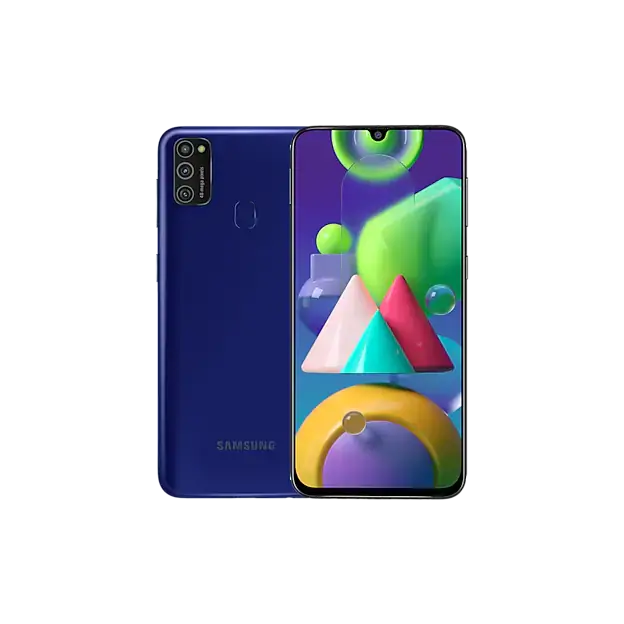
This manual covers two Samsung touchscreen phones, the SM-M215F and the SM-M315F, each sold in “/DS” and “/DSN” variants. Both take two nano-SIM cards, add storage with a microSD card, charge through a USB Type-C port, and have a rear fingerprint sensor and a headphone jack. Most features work the same on both. A few are limited to one model:
- SM-M215F only: Galaxy Shop, Music Share and Ultra data saving.
- SM-M315F only: NFC (on NFC-enabled models) and extra camera options such as macro mode and manual focus.
Some features also vary by region and carrier.
Keys and Controls
The phone uses a few hardware keys. The page references below are to the PDF.
| Action | How to do it |
| Turn on | Press and hold the Side key |
| Turn off | Press and hold the Side key, then tap Power off (or Restart) |
| Lock or wake the screen | Press the Side key |
| Launch a chosen app | Press the Side key twice |
| Take a screenshot | Press the Side key and Volume Down key together |
| Force a restart | Hold the Side key and Volume Down key together for more than 7 seconds |
To choose what the double press launches, open Settings → Advanced features → Side key. The soft buttons at the bottom of the screen are Recents, Home and Back. If the navigation bar disappears in an app, drag up from the bottom edge to bring it back (p. 129).
Charging the Battery
Charge the battery before first use, or after the phone has sat unused for a long time. Use only the Samsung-approved charger and the USB Type-C cable supplied with the phone. A Micro USB cable can damage the device (p. 15).
- Connect the USB cable to the power adapter.
- Plug the cable into the multipurpose jack on the phone.
- When charging is complete, disconnect the charger from the phone.
- Unplug the adapter from the wall. It has no power switch.
Fast charging needs a charger that supports Adaptive fast charging. Turn it on under Settings → Battery and device care → Battery → More battery settings. A standard charger will not trigger it.
The phone and charger can get warm while charging. This is normal. If the battery gets too hot, charging may slow or stop. Dry the multipurpose jack completely before charging, because charging with a wet port can damage the phone. If the battery is fully drained, wait a few minutes before the phone will turn on.
Installing SIM and Memory Cards
One tray holds the SIM and memory cards. Use nano-SIM cards only. In some areas, data speeds may be slower with two SIM cards inserted than with one.
- Insert the ejection pin straight into the hole next to the tray to loosen it. Keep the pin perpendicular to avoid damage.
- Pull the tray out gently.
- Place the card on the tray with the gold contacts facing down, then press it in to secure it.
- Slide the tray back in fully. Make sure the tray is dry first.
Removing the tray disables the mobile data connection. The phone supports FAT and exFAT memory cards. Format a new card on the phone, not on a computer. Before pulling a card out, unmount it under Settings → Battery and device care → Storage → Advanced → SD card → Unmount. Do not remove a card while data is being transferred.
To pick which SIM handles calls and other services, go to Settings → Connections → SIM card manager.
Setting Up Fingerprint and Face Unlock
You must set a pattern, PIN or password first. The phone asks for that code after every restart, and your fingerprint or face will not unlock it until you enter the code once. If you forget the code and have not reset the phone, you cannot use the device (p. 23).
Registering a fingerprint
- Open Settings → Biometrics and security → Fingerprints.
- Tap Continue and set a screen lock if prompted.
- Place your finger on the sensor, lift it, and place it again. Repeat until registration finishes.
- Tap Done, then turn on the Fingerprint unlock switch.
Cover the whole sensor with your finger, and keep both clean and dry. A protective film or sticker on the sensor can lower recognition rates.
Registering your face
Open Settings → Biometrics and security → Face recognition and follow the prompts. Register indoors, away from direct sunlight. Face recognition is less secure than a pattern, PIN or password, and someone who looks like you could unlock the phone (p. 26). Switching the screen lock to Swipe or None deletes all stored biometric data.
Camera Basics
Open the Camera app, or press the Side key twice. The modes list includes Photo, Video, Single take and Pro. Some modes and options differ between the two models.
- Zoom: Use the Ultra wide and wide-angle options on the rear camera, or pinch the screen.
- Lock focus and exposure: Tap and hold the subject until the AF/AE frame appears.
- Super steady: Turn it on in Video mode to stabilize footage.
- Ultra wide distortion: Turn on Ultra wide shape correction in Format and advanced options.
Keep the lens away from strong light such as direct sun, which can permanently damage the image sensor (p. 13). If the lens fogs after a sudden temperature change, let it dry at room temperature before shooting. Do not photograph people without permission or where it is prohibited.
Connecting Wi-Fi, Bluetooth and Hotspot
- Wi-Fi: Open Settings → Connections → Wi-Fi, switch it on and pick a network. If the connection fails, restart Wi-Fi or the router.
- Bluetooth: Open Settings → Connections → Bluetooth, switch it on and pick a device to pair. The troubleshooting section lists a maximum range of 10 m.
- Mobile hotspot: Open Settings → Connections → Mobile Hotspot and Tethering → Mobile Hotspot. Other devices can join with the password or a QR code. If they cannot see it, set Band to 2.4 GHz and turn off Hidden network.
- Moving from an old phone: Open Settings → Accounts and backup → Bring data from old device. Smart Switch works over a USB cable or wirelessly. Do not unplug the cable mid-transfer.
Battery and Device Care
Open Settings → Battery and device care to optimize the phone, check battery use, view storage and scan for malware. To stretch battery life, switch on power saving mode, lower the screen brightness, shorten the screen timeout, close unused apps and turn off Bluetooth when you are not using it.
Keep the phone updated under Settings → Software update. Emergency security updates may install automatically.
Safety and Handling
- Do not use a damaged cable, charger or battery.
- Do not leave the phone in direct sun, in a hot car, or near heaters or microwaves.
- Keep water off the touchscreen and out of the charging port.
- Stop using the phone if the glass or acrylic body is broken, and have it repaired at a Samsung Service Centre.
- Do not remove the battery yourself. Contact an authorized service centre (p. 129).
- The phone contains magnets. Keep it away from credit cards and implantable medical devices, and ask your physician if you have one.
- Do not attach metallic stickers or a metal case to the antenna area, or cover it with your hand during calls. Doing so can cause connection problems and battery drain.
- If the phone overheats, it can dim the screen, limit features or shut down. Let it cool before using it again.
Troubleshooting
| Problem | What to try |
| Phone won’t turn on | Charge the battery fully first |
| Touchscreen is slow or unresponsive | Remove any screen protector, clean your hands or screen, restart, and update the software |
| Phone is frozen | Hold the Side and Volume Down keys for more than 7 seconds |
| Still frozen after restart | Factory data reset: Settings → General management → Reset → Factory data reset. Back up your data first |
| Calls not connecting | Check that you’re on the right network and that call barring isn’t set |
| Others can’t hear you | Don’t cover the microphone, and hold it close to your mouth |
| Weak signal or poor audio | Don’t block the antenna, or move to another area |
| Camera error | Charge the battery, free up storage, and restart |
| Bluetooth problems | Check the 10 m range, toggle Bluetooth, or reset network settings |
| Not enough storage | Delete cached data or unused apps through device care |
Frequently Asked Questions
Which models does this manual cover?
It covers the SM-M215F/DS, SM-M215F/DSN, SM-M315F/DS and SM-M315F/DSN.
Can I use two SIM cards?
Yes. The tray holds two nano-SIM cards. Choose which one handles calls and other services in the SIM card manager.
Why does my phone get warm while charging?
Warmth during charging, wireless charging or fast charging is normal and does not affect lifespan or performance. If the lower part of the phone gets very hot, check the cable. A damaged cable can cause overheating.
How do I take a screenshot?
Press the Side key and Volume Down key together. You can also swipe the side of your hand across the screen if Palm swipe to capture is on under Advanced features → Motions and gestures. Screenshots are saved to Gallery.
Can I use any charger or cable?
Use only Samsung-approved chargers, batteries and cables. The supplied USB Type-C cable is the one to use. Unapproved accessories can cause problems that the warranty does not cover.
What if my fingerprint stops working?
Unlock the phone with your pattern, PIN or password, then register your fingerprint again. Check that the sensor and your finger are clean and dry, and remove any film covering the sensor.
How do I restart a frozen phone?
Hold the Side key and Volume Down key together for more than 7 seconds. If it keeps freezing, a factory data reset may help. Back up your data first, because it erases everything.
Can I replace the battery myself?
No. The manual warns against removing it yourself and says to contact an authorized service centre.