
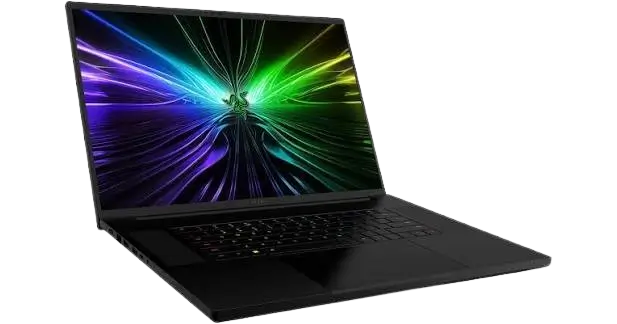
Razer Blade 18 RZ09-0582
The Razer Blade 18 is a gaming laptop with an 18″ UHD+/FHD+ dual-mode display, a per-key RGB keyboard with a 10-key number pad, a precision glass touchpad and six speakers powered by THX® Spatial Audio. It has a 5 MP webcam with a mechanical privacy shutter, a UHS-II SD card reader, Thunderbolt™ 5 and Thunderbolt™ 4 / USB Type-C ports, USB 3.2 Gen 2 Type-A ports, an HDMI™ 2.1 port and a 2.5 Gbps Ethernet port. It runs Windows 11. Razer Synapse handles drivers, performance modes, fan control, display options, sound, battery charge limits, lighting and macros. This page covers first-time setup, the keyboard, Synapse configuration, and the guide’s safety and battery guidance.
What’s Included and Where Things Are
Included in the box
- Razer Blade 18 (model number RZ09-0582)
- Power adapter and regional power cord
- Micro-fiber cleaning cloth
- Important Product Information Guide
Hardware features and ports
The guide labels the following parts on the laptop:
| Label | Feature |
| A | Dual microphone array |
| B | Infrared sensor / LED |
| C | 5 MP webcam |
| D | Mechanical privacy shutter |
| E | Webcam on/off indicator |
| F | 18″ UHD+/FHD+ dual-mode display |
| G | Speakers (6) powered by THX® Spatial Audio |
| H | Power button |
| I | Keyboard with per-key RGB and 10-key number pad |
| J | Precision glass touchpad |
| K | Power indicator |
| L | UHS-II SD card reader |
| M | Thunderbolt™ 5 / USB Type-C port* |
| N | USB 3.2 Gen 2 Type-A ports |
| O | HDMI™ 2.1 port |
| P | Lock slot |
| Q | Power port |
| R | 2.5 Gbps Ethernet port |
| S | Thunderbolt™ 4 / USB Type-C port* |
| T | 3.5 mm headphone / microphone combo port |
*Supports USB PD 3.0 charging up to 100W.
Setting Up Your Laptop
Connect power and charge
- Connect the appropriate power cord to the power adapter. Insert the AC plug into a power outlet, then connect the adapter to the power port of your Razer Blade 18.
- Power on the laptop. The power indicator shows its status.
- Follow the onscreen instructions to complete the Windows 11 setup. When prompted, connect to a wireless network with an active internet connection (recommended).
Use the power cord that is appropriate for your region. For first-time use, fully charge the laptop first, or make sure it is connected to a power outlet before you turn it on. A full charge takes at least 2 hours.
Power indicator
| State | Indicator |
| Sleep | White radiating-dot symbol |
| On | Green radiating-dot symbol |
| Low battery (10% left) | Solid red dot |
| Low battery (3% left) | Red radiating-dot symbol |
Webcam Privacy Shutter
The webcam has a mechanical privacy shutter, and a webcam on/off indicator sits beside it. The guide’s Webcam Feature illustration shows a slider with an ON position and an OFF position, with a red marker visible in the OFF position. Slide the shutter in the direction the illustration shows to switch the webcam on or off.
Installing Razer Synapse and Drivers
Razer Synapse downloads drivers and firmware updates for the laptop and other supported Razer peripherals. It also stores your custom settings and lighting effects in the cloud when you are logged in, so you can reach them from any computer.
- Make sure the laptop has an active internet connection.
- Razer Synapse starts automatically by default once you enter Windows 11. Sign up for a Razer ID or log in with an existing account.
- Wait until Razer Synapse automatically downloads and installs the necessary drivers.
You can continue as a guest, but you will not be able to store any settings to the cloud. Razer Cortex is an optional Razer platform for performance and gaming deals; find out more at razer.com/cortex.
Keyboard Features and Fn Shortcuts
Dedicated keys
| Key | Function |
| Windows key | Opens the Start menu. |
| Copilot key | Launches Windows Copilot. Availability varies by market. |
| Performance mode key | Switches between system performance modes. Requires Razer Synapse. |
| Gaming Mode key (G) | Disables the Windows key, Copilot key, Alt + Tab and Alt + F4 functions. Customizable in Razer Synapse. |
| Microphone key | Mutes or unmutes the microphone. |
The performance mode, Gaming Mode and microphone keys work only when Num Lock is disabled.
Secondary functions
Press the fn key together with a function key to use its secondary function.
| Function keys | Secondary function |
| Mute, volume down, volume up | Mutes, decreases or increases audio output. |
| Monitor key | Toggles the monitor output. |
| Play/pause, previous, next | Plays or pauses the current track, returns to the previous track, or skips to the next. |
| Screen brightness | Decreases or increases the screen brightness. |
| Keyboard backlight | Decreases or increases the brightness of the keyboard LEDs. |
| M1–M5 | Assigns a sequence of actions to a key for one-touch repetitive tasks. Set up in Razer Synapse. |
| Menu key | Opens in-app context menus. |
Configuring with Razer Synapse
The guide describes the New Razer Synapse and notes that it may only partly cover your device’s features. The app needs an internet connection to install, update, access and save cloud-based features. A Razer ID is recommended but optional, and features are subject to change by software version, connected devices and add-ons.
Navigating the Synapse tab
The Synapse tab is the default tab at first launch. Its buttons are:
- Minimize: minimizes the app to the taskbar while it keeps running in the background.
- Maximize: fills the screen; click again to restore the original size.
- Close: closes all relevant tabs and terminates the app completely.
- Previous Tab / Next Tab: move back to the last tab you visited, or forward again.
- Refresh Tab: reloads the current page.
- Download Update: appears when there are changes to the app.
- More: opens a pop-up for the Devices, Modules and Other Installed Apps tabs.
- Settings: opens the Settings tab.
- Profile: opens a pop-up with Log In, Feedback, Rate This Software, Add WiFi Device and Exit.
- Info: hover for extra information about a feature.
The Dashboard subtab gives an overview of your Razer devices, modules and online services. The Gamer Room subtab shows devices with the Razer Aether Light feature. Synapse Override lets you customize device lighting that reacts to Chroma-enabled games and Chroma Connect apps. The Modules subtab lists installed and available modules. Global Shortcuts binds operations or Synapse functions to custom key combinations that apply across all device profiles; only Razer Synapse-enabled device inputs are recognized.
The Blade 18 tab: profiles and Customize
The BLADE 18 tab holds your profiles, key assignments, gaming mode settings, trackpad options, lighting and power-saving features. Changes are saved automatically to your local system and cloud storage. When the laptop is plugged in, the System Performance Bar shows real-time CPU and GPU usage, fan speed, memory and storage. Press the miscellaneous button to customize or hide it.
The Customize subtab covers these options:
- Profile: stores all your Razer peripheral settings. The default profile name is based on your system’s name. Use the profile’s Miscellaneous button to add, import, rename, duplicate, export or delete a profile.
- Hypershift: a secondary set of key assignments active while the Hypershift key is held. By default the Hypershift key is the fn key, and you can assign any key instead.
- Gaming Mode: choose which keys to disable when Gaming Mode is active: the Windows key, Copilot key, Alt + Tab and Alt + F4.
- Snap Tap: prevents two preferred keys from being pressed at once, prioritizing the latest key input without requiring you to release the first.
- Function Key Primary: switches F1–F12 between standard Function Keys (the default, with fn needed for secondary functions) and Multimedia Keys, which work with a single press.
- Trackpad: links to scroll behavior, touchpad delay, gestures, cursor pointing and other advanced options.
Remapping keys
Click the Remap Menu button to see every current assignment, or select a key on the Customize tab. You can then change the key to one of these functions:
| Function | What it does |
| Default | Returns the key to its original setting. |
| Keyboard Function | Changes the key to a keyboard function. Turbo mode emulates repeatedly pressing it while the key is held. |
| Mouse Function | Turns a key into a mouse action: Left Click, Right Click, Scroll Click, Double Click, Scroll Up/Down/Left/Right, Mouse Button 4 (Backward) or Mouse Button 5 (Forward), plus Repeat Scroll Up/Down/Left/Right while held. Turbo mode is available on some. |
| Macro | Runs a prerecorded sequence with precise timing. Visible only when the Macro module is installed. |
| Inter-device | Changes the function of other Synapse-enabled devices, such as changing a Razer mouse’s Sensitivity Stage from the keyboard. |
| Switch Profile | Loads another profile; an on-screen notification appears. |
| Switch Chroma Effect | Switches between Chroma Effect Profiles in Chroma Studio. Visible only when the Chroma Studio module is installed. |
| Razer Hypershift | Activates Hypershift mode while the key is held. |
| Launch | Opens an app or website. |
| Multimedia | Volume Down/Up, Mute Volume, Mic Volume Up/Down, Mute Mic, Mute All, Play/Pause, Previous Track, Next Track. |
| Windows Shortcuts | Assigns a Windows OS shortcut command. |
| Text Function | Types prewritten text with full Unicode support when the key is pressed. |
| Disable | Makes the key unusable. |
Performance
The Performance subtab affects clock speed, power consumption and thermals. The Performance Modes panel has separate Plugged In and On Battery tabs and offers Balanced, Silent, Performance, Turbo and Custom. The panel shows Fn + P as the keyboard shortcut. Modes adjust system performance, fan speed and power usage for different tasks.
Fan Control offers three choices:
- Auto: sets fan speed from the current temperature.
- Fixed: maintains the selected rpm.
- Manual fan curve: customizes speed according to CPU and GPU temperature.
Display
The Display subtab controls resolution, color, refresh rate and GPU mode.
- Laptop Display: shows the current resolution, lets you switch refresh rates, and enables auto-refresh rate switching when running on battery.
- Native Display Mode: switches between the available resolution and refresh rate options. A restart is required to apply the change.
- GPU Mode: switches between NVIDIA® Optimus™ and Dedicated GPU-only mode. Certain refresh rates are available only in Dedicated GPU-only mode, and you must restart the system to apply any GPU mode change.
- External Display: links to Windows Display Settings.
- Laptop Display Calibration: shows the calibration report for the Calman-verified criteria.
- Color Profile: changes color accuracy from the available profiles, or use Windows Color Management for advanced settings.
Sound
- Audio Equalizer: presets for gaming, movies, music or vocal clarity. Adjusting a preset manually sets it to Custom.
- Volume: adjusts device volume; the Windows volume mixer handles system and per-app volume.
- Sound Properties: opens Windows Sound Properties for playback and recording devices, sound schemes and default communications activity.
- Sound Normalization: raises quiet sounds without affecting louder parts.
- Voice Clarity: improves incoming dialogue from communication apps.
Battery
The Battery subtab lets you limit the charge level to extend battery life. The panel shows a Battery Health Optimizer toggle with a limit setting, and the battery stops charging once it reaches that limit. You can also choose to fully charge the battery once before being away from a power source for an extended period.
Lighting
- System Lighting: sets brightness when plugged in and on battery. Turn lighting off with the Brightness toggle or adjust it with the slider. The Link option uses one brightness setting for both, and a dropdown changes the logo lighting.
- Switch Off Lighting: a power-saving tool that turns lighting off when the display turns off and/or after the laptop has been idle for a set time. With Link on, one setting applies to both, and you can set lighting to turn off below a chosen battery percentage.
- Startup Animation: toggles a ripple lighting effect across the keyboard during startup.
- Advanced Effects: choose a Chroma Effect Profile, or press Launch Chroma Studio to build your own. Only other Razer devices that support the selected effect will synchronize.
- Chroma Sync: synchronizes quick effects with other supported Razer Chroma-enabled devices.
Quick effects:
| Effect | Description | Setup |
| Ambient awareness | Reflects the averaged color of a selected screen region. | Select or customize a screen region. |
| Audio meter | LEDs light up with the audio level, using a default spectrum. | Select a Color Boost level. |
| Breathing | Fades in and out of the selected color(s). | Up to 2 colors, or randomize. |
| Fire | Warm colors that mimic flames. | None required. |
| Reactive | LEDs light when a key is pressed, then fade after a set time. | Select a color and a duration. |
| Ripple | On key press, light ripples away from the key. | Select a color. |
| Spectrum cycling | Cycles through 16.8 million colors indefinitely. | None required. |
| Starlight | Each LED randomly fades in and out. | Up to 2 colors or randomize, plus a duration. |
| Static | LEDs stay lit in one color. | Select a color. |
| Tidal | Lighting converges or diverges across the device. | Up to 2 colors or randomize, plus a direction. |
| Wave | Lighting scrolls in one direction. | Left-to-right or right-to-left. |
| Wheel | Lighting rotates with a default spectrum. | Counterclockwise or clockwise. |
Macros
A macro is a set of recorded keystrokes, button presses and cursor movements you can bind to a key and run at any time. The My Macros subtab lets you create, edit and organize macros. The macro dropdown lets you search, sort, create folders and create new macros, and selecting a macro enables renaming, duplicating and deleting.
To record a macro, click Record. Before recording, you can use the dropdown for these options:
- Start Delay: a delay of 1 to 5 seconds before recording starts.
- Shortcut Key: starts a recording even when Synapse is in the background.
- Delay Settings: time between each command.
- Mouse Movement Tracking: enables mouse movement recording and sets how it is recorded.
Click Stop or press the Shortcut Key to end the recording. You can then edit commands one by one; the first command is at the top. The Insert menu adds delays, keystrokes and button presses, whole macro groups, app launches, commands, typed text and loops. The Key Binds subtab shows a macro’s shortcut keys and lets you bind it to a device key with the Assign Macro To Your Devices button.
Linked Games and Synapse settings
On the Linked Games tab you can add apps, see peripherals linked to apps, search the list and sort by alphabetical order, last played or most played. Use Add to search for an app manually or Scan to search automatically. To link an app, click it, then select a device and profile. The device then switches to that profile whenever the app launches.
The Settings tab includes:
- Auto Launch: startup behavior of the app.
- Notifications: on-screen notifications even when you run full-screen apps.
- Recommendations: latest products and features on your Dashboard based on installed devices and linked games.
- Tutorials Reset: reactivates all Synapse tutorials.
- Profile Migration: transfers profiles, macros and Chroma effects from Synapse 3 to the new Synapse.
- Device Lighting: chooses which app controls lighting effects.
- Language: changes the display language of Razer Synapse.
- About: shows the software version, copyright statement, terms-of-use links and Razer’s social communities.
The Feedback tab lets you send comments, suggestions and problems, and you can earn rewards for reporting bugs.
Safety Guidelines and Battery Care
Safety guidelines
- If you have trouble operating the device and troubleshooting does not work, unplug it and go to support.razer.com for FAQs, guides and contact information for the Razer Advocacy team.
- Do not take the device apart, which may void your warranty, and do not operate it during power fluctuations.
- Magnets and electromagnetic fields may interfere with other electronic devices. Keep the laptop more than 6″/15 cm from other electronic devices, or more than 12″/30 cm from wireless chargers.
- Do not place the device in a bag or enclosed space while the power adapter is connected. Always disconnect the adapter before transport. Failure to do so may result in overheating, electrical damage or fire, particularly if the device is dropped or compressed.
- Keep the device away from liquid, humidity and moisture. Operate it only between 0°C (32°F) and 40°C (104°F). If the temperature exceeds this range, unplug and/or switch off the device and let the temperature stabilize.
Comfort
Long periods of repetitive motion, poor positioning, incorrect body position and poor habits may be associated with discomfort and injury to nerves, tendons and muscles. The guide recommends:
- Position the laptop directly in front of you. Keep an external mouse next to the laptop, elbows at your sides and the mouse within easy reach.
- Adjust your chair and table so the laptop is at or below elbow height.
- Keep your feet well supported, posture straight and shoulders relaxed.
- During gameplay, relax your wrist and keep it straight. For repeated tasks, avoid bending, extending or twisting your hands for long periods.
- Do not rest your wrists on hard surfaces for long periods. Use a wrist rest with an external mouse.
- Do not sit in one position all day. Get up, step away and stretch your arms, shoulders, neck and legs.
- If you feel pain, numbness or tingling in your hands, wrists, elbows, shoulders, neck or back, consult a qualified medical doctor immediately.
Battery warning
The Razer Blade 18 contains an internal lithium-ion rechargeable battery whose life expectancy depends on usage. If you suspect it is drained, try charging it. If it does not recharge after several attempts, it may be non-operational.
Do not open, mutilate or expose the battery to conducting materials (metal), moisture, liquid, fire or heat, which may cause it to leak or explode and result in personal injury. Do not use or charge the battery if it is leaking, discolored or deformed. Do not leave it discharged or unused for extended periods. If you will not use the laptop for more than 30 days, store the battery fully charged. Do not tamper with the battery, and dispose of a used battery according to local regulations.
Warranty and Support
The laptop comes with a 1-year limited manufacturer’s warranty and a 2-year limited battery warranty. Warranty may vary by region and is subject to applicable local law. Register at razerid.razer.com for Razer benefits. The latest warranty terms are at razer.com/warranty, and the Razer Support Team can be reached at support.razer.com. The serial number location is shown in the guide’s “Let’s Get You Covered” section.
Frequently Asked Questions
How long does the Razer Blade 18 take to charge, and should I charge it before first use?
A full charge takes at least 2 hours. Before first use, either charge the laptop fully or connect it to a power outlet before you turn it on. Use the power cord that is appropriate for your region with the supplied power adapter.
What do the power indicator lights mean?
The power indicator is on the front edge and shows four states. A white radiating-dot symbol means the laptop is asleep, and a green radiating-dot symbol means it is on. A solid red dot means the battery has 10% left, and a red radiating-dot symbol means 3% is left. If you see red, connect the power adapter.
Do I need a Razer ID to use Razer Synapse?
No. Razer Synapse starts automatically in Windows 11 and prompts you to sign up or log in, but you can continue as a guest. Guests cannot store settings to the cloud, so profiles and lighting settings will not be available from another computer. Synapse still needs an internet connection to install, update and access cloud-based features.
How do I change the performance mode?
Press the performance mode key on the keyboard, which requires Razer Synapse. You can also open Razer Synapse, go to the BLADE 18 tab, select Performance, and pick Balanced, Silent, Performance, Turbo or Custom. Plugged In and On Battery have separate tabs, and the panel shows Fn + P as the shortcut. Fan Control on the same page offers Auto, Fixed rpm or a Manual fan curve based on CPU and GPU temperature.
Why don’t the performance, Gaming Mode or microphone keys respond?
Those three keys work only when Num Lock is disabled. Press Num Lock to turn it off, then try again. The performance mode and Gaming Mode keys also depend on Razer Synapse.
How do I stop the Windows key and Alt + Tab from interrupting a game?
Press the Gaming Mode key (marked G) to disable the Windows key, Copilot key, Alt + Tab and Alt + F4. To choose which of those are disabled, open Synapse, go to BLADE 18, then Customize, then Gaming Mode. This key only works with Num Lock off.
How can I use F1–F12 without holding fn, or the media keys without fn?
Open Razer Synapse, go to BLADE 18, then Customize, and find Function Key Primary. By default F1–F12 act as standard function keys and need fn for volume, brightness, media and other secondary actions. Switch to Multimedia Keys and those functions work with a single press.
How do I limit the battery charge level?
Open Razer Synapse, go to the BLADE 18 tab, and select Battery. The Battery Health Optimizer lets you set a limit, and charging stops when the battery reaches it. This helps extend battery life. If you will be away from a power source for a long time, you can choose to fully charge the battery once.
How do I switch between NVIDIA Optimus and Dedicated GPU-only mode?
In Razer Synapse, go to BLADE 18, then Display, and use GPU Mode to choose NVIDIA® Optimus™ or Dedicated GPU-only. The guide says this lets you maximize performance and battery life as needed. Restart the system to apply any GPU mode change. Some refresh rates are available only in Dedicated GPU-only mode.
How do I record a macro?
Open Razer Synapse, go to the Macro tab, and create a macro from My Macros. Click the Record button, or first open its dropdown to set a Start Delay of 1 to 5 seconds, a Shortcut Key, Delay Settings or Mouse Movement Tracking. Click Stop or press the Shortcut Key to end the recording, then edit commands as needed. Bind the macro to a key from the Key Binds subtab. The Macro option appears in the key remap list only when the Macro module is installed.
Can I carry the laptop in a bag with the power adapter connected?
No. Do not place the device in a bag or enclosed space while the power adapter is connected, and always disconnect the adapter before transport. Doing otherwise may cause overheating, electrical damage or fire, particularly if the device is dropped or compressed. Also keep the laptop dry and operate it only between 0°C (32°F) and 40°C (104°F).
What warranty does the Razer Blade 18 have, and where do I get support?
It has a 1-year limited manufacturer’s warranty and a 2-year limited battery warranty, though coverage may vary by region and local law. Register at razerid.razer.com, check the latest terms at razer.com/warranty, and contact the Razer Support Team at support.razer.com. Taking the device apart may void your warranty.