
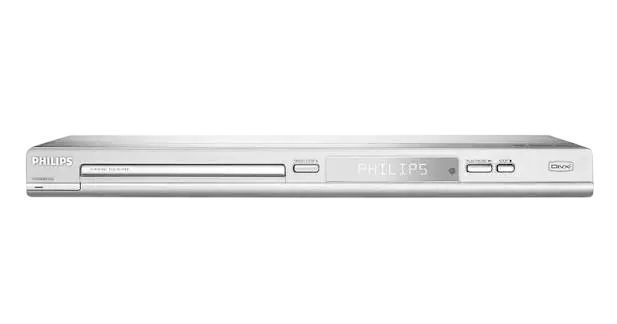
The Philips DVP 3040 is a DVD video player that connects to a standard TV with a composite video cable and left/right audio cables. Its Quick Start Guide splits setup into three stages: connect the player, set it up, and play a disc. This page walks through those stages, then covers the remote control buttons you will use most and the basic fixes for the most common problems.
What’s in the Box
The player ships with these items (p. 1):
- DVD video player
- Remote control with 2 AAA batteries
- Quick Start Guide
- Video cable (yellow plug)
- Audio cables (red and white plugs)
- User Manual
Connecting the Player to Your TV
The basic connection uses the supplied cables and carries both picture and sound to the TV (p. 1).
- Plug the yellow video cable into the player’s VIDEO OUT (CVBS) socket. Connect the other end to the Video In socket on your TV. TVs may label this socket A/V In, Video In, Composite, or Baseband.
- To hear the player through the TV, connect the red and white audio cables to the player’s AUDIO OUT L/R sockets. Plug the other ends into the matching Audio In sockets on the TV.
- Plug the player’s power cable into an AC power outlet.
The Quick Start Guide notes that the full user manual describes other possible connections, such as component video. If your TV has no composite input, check that manual before buying additional cables.
Finding the Viewing Channel
Before the TV shows anything from the player, it has to be set to the input the player is connected to (p. 2).
- Press the standby power button on the DVD player’s remote control.
- Switch on the TV.
- Press SETUP on the DVD player’s remote control.
- On the TV’s remote control, press 0, then press Channel Down repeatedly until the DVD background screen appears. That is the correct viewing channel for the player.
Some TVs work differently. On those sets, keep pressing the AV or SELECT button until the DVD background screen appears. If you still cannot find it, recheck the cable connections or look in your TV’s user manual.
Choosing the On-Screen Language
The remote control lets you pick the on-screen, audio, subtitle, and menu languages. The guide gives step-by-step instructions only for the on-screen language, which is the language of the player’s setup menus.
- Press the right arrow to select General Setup Page.
- Press the up or down arrow to highlight OSD Language, then press the right arrow.
- Press the up or down arrow to choose a language, then press OK.
The guide’s screens show English, Français, Deutsch, and Nederlands in the language list. The General Setup Page also lists Disc Lock, Display Dim, Program, Sleep, and DIVX(R) Vod Code. Once you set the on-screen language, it stays the same no matter what language a disc uses.
Playing a Disc
Playback may start on its own after you load a disc in the tray (p. 2). If a disc menu appears on the TV, use the arrow buttons to scroll through the options, then press PLAY/PAUSE on the one you want.
- Press PLAY/PAUSE to start playback.
- Press STOP to stop playback.
- Press DISC MENU at any time to return to the disc menu.
Remote Control Buttons
These are the controls the Quick Start Guide refers to.
| Button | What it does |
| Standby power (remote) | Turns the player on during setup |
| SETUP | Opens the setup menu |
| Arrow buttons | Move through setup and disc menu options |
| OK | Confirms a selection in the setup menu |
| PLAY/PAUSE | Starts playback and selects a disc menu option |
| STOP | Stops playback |
| DISC MENU | Returns to the disc menu |
Troubleshooting
The Quick Start Guide lists four common problems with simple checks (p. 2).
No power
Make sure the AC power cord is firmly connected. Then press STANDBY-ON on the front of the player to turn it on.
No picture
Check the connection to the TV and make sure the plugs are pushed in firmly.
No sound or distorted sound
Adjust the volume. Also confirm that the audio cables are connected to the correct input source.
Remote control does not work
Check that the batteries are loaded correctly, or replace them with new ones. Move closer to the player, and point the remote directly at the IR sensor.
For more help, see the user manual that came with the player, visit www.usasupport.philips.com, or call 1-888-PHILIPS (1-888-744-5477).
Frequently Asked Questions
How do I connect the DVP 3040 to my TV?
Use the yellow video cable between the player’s VIDEO OUT (CVBS) socket and your TV’s Video In socket. Then connect the red and white audio cables from AUDIO OUT L/R to the TV’s Audio In sockets so you get sound. Finish by plugging the power cable into an AC outlet.
Why is my TV screen blank when the player is on?
Usually the TV is on the wrong input. Turn on the player and the TV. Then, on the TV remote, press 0 and step down with Channel Down until the DVD background screen appears. On some TVs, pressing AV or SELECT repeatedly works better. If that fails, check the cable connections.
How do I change the language of the setup menus?
Press SETUP, go to General Setup Page, highlight OSD Language, and press the right arrow. Choose a language with the up and down arrows and press OK.
Can I also change the audio and subtitle languages?
The guide says the remote control can be used to select audio, subtitle, and menu languages. It shows the steps for the on-screen language only. The user manual that came with the player covers the rest.
Does the disc start playing automatically?
It may. If a disc menu appears, pick an option with the arrow buttons and press PLAY/PAUSE. If nothing plays, press PLAY/PAUSE to start. DISC MENU takes you back to the menu.
What should I do if the remote stops responding?
Check the battery orientation or fit new batteries. Reduce the distance to the player and aim the remote straight at the IR sensor.
Does the Quick Start Guide list the player’s specifications or supported disc formats?
No. The guide covers connection, setup, basic playback, and troubleshooting. Other connection types, such as component video, are only mentioned and are described in the full user manual.