
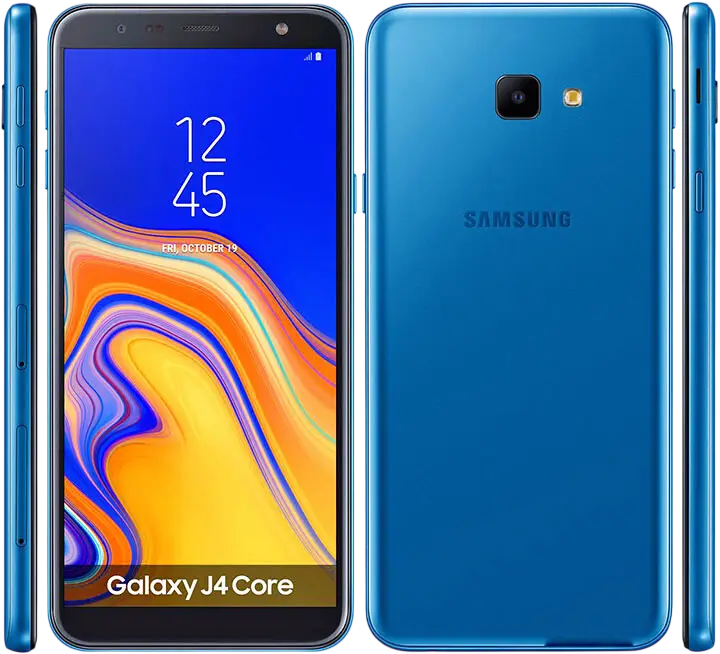
This Samsung Galaxy smartphone runs a streamlined Android setup built around Google’s lightweight “Go” apps, including Files Go, Maps Go, and Google Go. It has a touchscreen with on-screen navigation buttons, front and rear cameras with flash, an FM radio, an earphone jack, and card trays for nano-SIM and microSD cards. There are four variants: the single-SIM SM-J410F and SM-J410G, and the dual-SIM SM-J410F/DS and SM-J410G/DS. Dual-SIM models let you run two phone numbers or carriers on one device. Hardware specifications such as screen size, battery capacity, and storage aren’t included in this guide.
Parts and Controls
The front of the phone holds the proximity/light sensor, front camera, front flash, earpiece speaker, and touchscreen. The Volume key and card tray sit on one side, with the Power key on the other. Single-SIM models have a SIM card tray plus a separate memory card tray. Dual-SIM models use tray 1 for the primary SIM and tray 2 for the secondary SIM and memory card. The rear camera, rear flash, and antenna areas are on the back. The multipurpose (charging) jack, earphone jack, and microphone are along the bottom edge.
| Control | What it does |
| Power key (press and hold) | Turns the phone on or off |
| Power key (press) | Turns on or locks the screen |
| Volume key | Adjusts the device volume |
| Recents button | Opens the list of recent apps |
| Home button | Returns to the Home screen; tap and hold to launch Google Assistant |
| Back button | Returns to the previous screen |
Avoid metallic stickers or metal covers on the antenna area, and don’t cover the proximity sensor with screen protectors or stickers. Both can cause connectivity problems, battery drain, or sensor malfunctions.
Charging the Battery
Charge the battery before first use or after the phone has sat unused for a long time. Use only Samsung-approved chargers, batteries, and cables, since unapproved accessories can cause the battery to explode or damage the device.
- Connect the USB cable to the USB power adapter.
- Plug the USB cable into the phone’s multipurpose jack.
- Plug the power adapter into an electrical outlet.
- When charging is complete, disconnect the charger from the phone first, then unplug it from the outlet.
A few charging points worth knowing:
- A fully drained battery won’t power on right away. Let it charge for a few minutes first.
- Charging from a computer is slower because of the lower electric current.
- You can use the phone while it charges, but a full charge will take longer.
- Never charge while the multipurpose jack is wet. Dry it thoroughly first.
Power Saving Mode
To extend battery life, open Settings > Smart Manager > Battery, tap TURN ON MAXIMUM POWER SAVING MODE to adjust the options, and then tap APPLY. Lowering screen brightness and turning off Wi-Fi and Bluetooth when you’re not using them also help.
Installing SIM and Memory Cards
The phone accepts nano-SIM cards only. Memory cards must use the FAT or exFAT file system. Cards formatted any other way must be reformatted before the phone can use them. Removing the tray disables the mobile data connection.
- Insert the ejection pin into the hole next to the tray. Keep the pin perpendicular to the hole to avoid damaging the device.
- Gently pull the tray out of its slot.
- Place the card on the tray with the gold contacts facing down. On dual-SIM models, put the primary SIM in tray 1 and the secondary SIM in tray 2. A microSD card goes in tray 2.
- Press the card gently into the tray so it sits securely.
- Slide the tray fully back into the slot.
Always make sure the tray is dry before inserting it, and push it all the way in so liquid can’t get inside (p. 19).
Managing Dual SIM Cards
On dual-SIM models, go to Settings > Connections > SIM card manager to activate each card, rename it, or choose its network mode. Under PREFERRED SIM CARD, you can assign calls, text messages, and mobile data to specific cards. In some areas, data speeds may be slower when two SIM cards are installed.
Removing or Formatting a Memory Card
Before removing a microSD card, unmount it through Settings > Smart Manager > Storage > Storage settings > SD card > UNMOUNT. Never remove a card while the phone is reading or transferring data. To format a card, follow the same path and choose Format. Back up important files first, because formatting erases everything on the card.
Turning On, Restarting, and Initial Setup
Press and hold the Power key for a few seconds to turn the phone on. To turn it off or restart it, press and hold the Power key, then tap Power off or Restart.
If the phone freezes and stops responding, press and hold the Power key and Volume Down key together for more than 7 seconds to force a restart (p. 25).
During first-time setup, choose your language, connect to Wi-Fi, follow the on-screen prompts, and set a screen lock. You can skip the lock by tapping Not now and add one later.
Transferring Data with Smart Switch
Install Smart Switch on both phones, place them near each other, and open the app on both. On the old phone, tap WIRELESS > SEND. On the new one, tap WIRELESS > RECEIVE, select the old device type, and follow the prompts.
Everyday Use
Screen Lock and Screenshots
Change the lock method under Settings > Lock screen and security > Screen lock type. Options include Swipe, Pattern (at least four dots), PIN (at least four numbers), Password (at least four characters), or None. To take a screenshot, press and hold the Volume Down key and Power key at the same time. Screenshots appear in Gallery.
Calls
To place an international call, open the keypad, tap and hold 0 until the + sign appears, then enter the country code, area code, and number.
Camera
Tap the preview screen to focus, then tap the shutter to take a photo or the record button to shoot video. Tapping and holding an area locks focus and exposure. Keep the lens away from strong light such as direct sunlight, since a damaged image sensor can’t be repaired. If photos look blurry, clean the lens.
FM Radio
The Radio app needs a connected headset, which works as the antenna. On first launch, the radio scans and saves available stations automatically.
Wi-Fi, Bluetooth, and Mobile Hotspot
Connect to Wi-Fi under Settings > Connections > Wi-Fi, then choose a network and enter its password. For Bluetooth, turn on the switch under Connections > Bluetooth and select a device to pair. Keep paired devices within the maximum Bluetooth range of 10 m (p. 90).
To share your mobile data, go to Connections > Mobile Hotspot and Tethering > Mobile Hotspot and turn it on. Tap Configure Mobile Hotspot to set a password. Using the hotspot may lead to extra carrier charges.
Safety and Overheating
The phone and charger can get warm while charging, which is normal. If the battery gets too hot, charging may stop. When the phone overheats, unplug the charger, close running apps, and let it cool before charging again. Heat near the bottom of the phone may point to a damaged USB cable, which you should replace with a Samsung-approved one.
If the device gets hotter than usual, it may limit screen brightness and performance, stop charging, close apps, and allow only emergency calls until it cools. Prolonged overheating triggers a power-off message (p. 8).
To protect the battery and avoid fire risk:
- Don’t store or use the phone in very hot or cold places, such as a car in summer.
- Keep it out of prolonged direct sunlight and off electric heating mats.
- Keep it away from heaters, microwaves, hot cooking equipment, and high-pressure containers.
- Never use a damaged charger or battery.
Troubleshooting
| Problem | What to try |
| Phone won’t turn on | The battery is fully drained. Charge it completely before turning the phone on. |
| Asked for a PUK code | The SIM is blocked, usually after several wrong PIN entries. Enter the PUK from your service provider. |
| Touchscreen is slow or unresponsive | Remove screen protectors or accessories, use clean, bare fingers, restart the phone, and update the software. |
| Phone freezes | Force a restart with Power + Volume Down for more than 7 seconds. If that fails, perform a factory data reset after backing up your data. |
| Others can’t hear you | Make sure the microphone isn’t covered and is close to your mouth, and check that any earphone is properly connected. |
| Battery won’t charge properly | Check the charger connection. If the problem continues, have the battery replaced at a Samsung Service Center. |
| Bluetooth problems | Keep devices within 10 m, toggle Bluetooth off and on, or reset network settings under System > Reset. |
| Storage is full | Clear cache with Smart Manager or delete unused apps and files. |
To perform a factory data reset, go to Settings > System > Reset > Factory data reset > RESET > DELETE ALL. This erases your data, so back up important files first.
Frequently Asked Questions
What is the difference between the SM-J410F and SM-J410F/DS?
The /DS suffix marks the dual-SIM versions. The SM-J410F/DS and SM-J410G/DS accept two nano-SIM cards, while the SM-J410F and SM-J410G hold one SIM plus a separate memory card.
Can I use a microSD card and two SIM cards at the same time?
On dual-SIM models, the card installation diagram shows room for two nano-SIM cards plus a microSD card, with the memory card going on tray 2. The maximum supported card capacity isn’t listed. Samsung directs owners to its website for that detail.
How do I restart the phone if it’s frozen?
Press and hold the Power key and Volume Down key together for more than 7 seconds. The phone will restart.
Why does the phone get hot while charging?
Mild warmth during charging is normal and doesn’t affect the device’s lifespan. If it gets very hot, unplug the charger, close apps, and let the phone cool down. If the bottom of the phone overheats, check the USB cable for damage.
Does the FM radio work without earphones?
No. You must connect a headset because it acts as the radio antenna. Once it’s connected, you can still play the radio through the speaker.
Will a factory reset delete my data?
Yes. A factory data reset erases the data stored on the phone, so back up anything important before you start.