
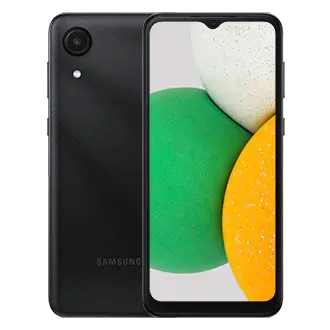
The Samsung SM-A032F is an Android smartphone sold in single-SIM (SM-A032F) and dual-SIM (SM-A032F/DS) versions. It uses a nano-SIM card, accepts a microSD card for extra storage, and has a front and rear camera with flash, a 3.5 mm earphone jack, a multipurpose charging jack, and an FM radio that works with wired earphones. You move around the phone with on-screen Recents, Home, and Back buttons. It comes with Samsung and Google apps, including Galaxy Store, Play Store, Gallery, and Files. This guide covers setup, everyday use, battery care, safety, and troubleshooting.
Parts and Controls
The front has the touchscreen, front camera, speaker, and proximity/light sensor. The SIM/microSD tray, Volume key, and Side key are on the side. The bottom has the earphone jack, multipurpose jack, microphone, and speaker. The rear camera and flash are on the back.
| Control | Action |
| Side key (press and hold) | Turn the phone on or off |
| Side key (press) | Turn on or lock the screen |
| Side key (press twice quickly) | Launch the Camera |
| Side key (press five times) | Emergency SOS call, if enabled |
| Side key + Volume Down | Take a screenshot |
| Side key + Volume Down (hold 7+ seconds) | Force restart |
Don’t cover the proximity/light sensor with a screen protector, sticker, or case. Use only a Samsung-approved screen protector so the sensors keep working. Metallic stickers or metal cases on the antenna area can cause poor reception and battery drain.
Getting Started
Insert the SIM and microSD Cards
The SIM and microSD cards share one tray. Dual-SIM models take two nano-SIM cards.
- Push the ejection pin straight into the hole next to the tray to loosen it.
- Gently pull the tray out of its slot.
- Place the card on the tray with the gold contacts facing down, then press it in gently so it sits firmly.
- Push the tray all the way back into the slot.
Only nano-SIM and microSD cards are supported. Keep the pin straight to the hole and never insert a wet tray. Push the tray in fully so liquid can’t get inside. Taking the tray out turns off the mobile data connection. In some areas, data speeds may be slower with two SIM cards installed (p. 9).
On dual-SIM models, open Settings → Connections → SIM card manager to turn on each card and pick a preferred SIM for calls and other features.
microSD Card Tips
The phone supports FAT and exFAT file systems. A card formatted on a computer may not work, so format it on the phone: Settings → Smart Manager → Storage → Storage settings → SD card → Format. Back up the card first, because formatting erases it. Unmount the card from the same menu before taking it out, and never remove it while data is being transferred.
Charge and Turn On
Charge the battery before first use. Connect the USB cable to the USB power adapter, plug it into the multipurpose jack, and unplug the charger when the battery is full. Use only a Samsung-approved charger and cable. Incompatible accessories can cause serious injury or damage.
Press and hold the Side key for a few seconds to turn the phone on, then follow the on-screen setup. Connect to Wi-Fi during setup, or some features may not be available to set up. To turn the phone off, hold the Side key and tap Power off. Tap Restart to restart it instead.
Everyday Use
Navigating the Screen
Swipe up on the Home screen to open the Apps screen. Swipe down, or tap Home or Back, to return. Tap and hold an empty spot on the Home screen to change the wallpaper or add widgets. Drag one app onto another to make a folder. Pull the status bar down to open the notification panel and quick setting buttons.
To set a pattern, PIN, or password, go to Settings → Lock screen and security → Screen lock. Smart Lock can keep the phone unlocked at trusted places or near trusted devices. You’ll still need your code after four hours without use or after turning the phone on.
Calls and Contacts
Open the Phone app, enter a number, and tap the voice or video call icon. For international calls, tap and hold 0 until the + sign appears, then enter the country code, area code, and number. To block numbers, open Phone → Settings → Block numbers. You won’t get notifications from blocked callers, but their calls still show up in the call log.
Camera
Tap the preview to focus, drag the brightness bar to adjust exposure, and tap the shutter. Swipe left or right on the preview to switch between Photo, Video, and Panorama modes. Pinch to zoom, which works only with the rear camera. Tap and hold a spot to lock focus and exposure. If pictures look blurry, clean the lens. Don’t point the lens at strong light such as direct sunlight, which can permanently damage the image sensor.
FM Radio
Connect wired earphones before opening the Radio app, because they act as the antenna. The first time you open it, the app scans for stations and saves them automatically. You can then switch playback to the speaker. The Radio app may not be available in some regions.
Wi-Fi, Bluetooth, and Hotspot
Turn on Wi-Fi in Settings → Connections → Wi-Fi and choose a network. For Bluetooth, open Connections → Bluetooth, switch it on, select a device, and accept the pairing request. To share mobile data, go to Connections → Mobile Hotspot and Tethering → Mobile Hotspot and switch it on. Other devices can connect by picking your phone from their Wi-Fi list or by scanning the QR code. Using the hotspot may cost extra.
Battery and Maintenance
To make the battery last longer:
- Turn on power saving mode in Settings → Smart Manager → Battery.
- Lower the screen brightness and shorten the screen timeout.
- Close apps you aren’t using.
- Turn off Bluetooth when you don’t need it.
Smart Manager → Optimise phone closes background apps and handles unusual battery use. You can also set auto optimization to run while the phone is idle.
Charging tips:
- A fully drained battery needs a few minutes on the charger before the phone will turn on.
- Charging from a computer is slower because it supplies less current.
- Some warmth while charging is normal. If the battery gets too hot, charging may slow down or stop.
- Always dry the multipurpose jack completely before charging.
Back up your data regularly so you can recover it after a reset or data loss. You can check and free up storage in Smart Manager → Storage.
Safety Information
- Use only Samsung-approved batteries, chargers, cables, and accessories.
- Don’t use the phone if its glass or acrylic body is broken. Have it repaired at a Samsung Service Centre first.
- The phone contains magnets. Keep it more than 15 cm away from implanted medical devices, and stop using it if you suspect interference (p. 59).
- Don’t store or use the phone in very hot or cold places, in direct sunlight, inside a hot car, on an electric heating mat, or near heaters and microwaves.
- Don’t use damaged cables, chargers, or batteries.
- Keep water away from the touchscreen. Don’t clean the speaker or microphone openings with sharp objects.
- Don’t leave the same image on screen for long periods, because it can cause burn-in.
If the phone overheats, a warning appears. Brightness, performance, and charging are then limited until it cools down. A second warning means the phone will turn off. If that happens during an emergency call, the call won’t be cut off (p. 63).
Troubleshooting
| Problem | What to try |
| Phone won’t turn on | Fully charge the battery, then try again. |
| Phone is frozen | Hold the Side key and Volume Down for more than 7 seconds. |
| Touchscreen responds poorly | Remove screen accessories, make sure your hands are clean and dry, restart, and update the software. |
| Asked for PIN or PUK | Enter the PIN that came with the SIM. If the SIM is blocked after too many wrong PIN attempts, get the PUK from your carrier. |
| Poor signal or dropped calls | Don’t cover the antenna, move to another area, and check your call barring settings. |
| Others can’t hear you | Make sure the microphone isn’t covered and is close to your mouth. |
| Bluetooth won’t connect | Stay within 10 m, turn Bluetooth off and on again, or reset network settings. |
| Camera shows errors | Charge the battery, free up storage, and restart. |
| Battery doesn’t charge | Check that the charger is connected properly. If it still won’t charge, visit a Samsung Service Centre. |
| Home button missing | Swipe up from the bottom of the screen. |
If nothing else works, do a factory data reset in Settings → System → Reset → Factory data reset → Delete all. Back up your data first, because the reset erases everything on the phone.
Frequently Asked Questions
What’s the difference between the SM-A032F and SM-A032F/DS?
The SM-A032F/DS is the dual-SIM version. It holds two nano-SIM cards, so you can use two phone numbers or carriers. The SM-A032F takes one SIM card.
Can I add a memory card?
Yes. The phone takes a microSD card formatted in FAT or exFAT. The manual doesn’t give a maximum card size and refers owners to the Samsung website instead.
How do I take a screenshot?
Press the Side key and the Volume Down key at the same time. Screenshots are saved to Gallery. Some apps don’t allow screenshots.
Why won’t the FM radio pick up stations?
The radio needs wired earphones plugged in, because they work as the antenna. Connect them before you open the Radio app.
How do I restart the phone if it stops responding?
Press and hold the Side key and the Volume Down key together for more than 7 seconds.
Does the phone get hot while charging?
Some warmth is normal and doesn’t affect performance. If it gets very hot, unplug the charger, close running apps, and let the phone cool down. If the bottom edge overheats, the USB cable may be damaged. Replace it with a new Samsung-approved cable.
How do I set up an emergency SOS call?
Go to Settings → Safety and emergency and turn on Emergency SOS. After that, pressing the Side key five times calls your preset emergency number.
How do I reset the phone to factory settings?
Open Settings → System → Reset → Factory data reset → Delete all. Back up important data first, because everything on the phone will be erased.